2 min read
© IE Online Media Services Pvt Ltd



 macOS Split View allows users to arrange four apps on a single desktop. (Image credit: Vivek Umashankar/The Indian Express)
macOS Sequoia 15 is one of the biggest updates that Apple has released for Macs. This time around, the latest version of macOS not only introduces Apple Intelligence but also makes multitasking a lot easier, especially for those who prefer opening more than one app at all times.
Although Mac users were able to access more than one app/software on a single homepage, also known as a desktop, one had to manually resize and adjust different app windows. This can be quite frustrating. With the macOS Sequoia 15 update, however, users can automatically arrange up to four apps to properly fit inside the desktop with just a single tap of a button.
As the name suggests, Split View enables Mac users to split the window into two or four to easily organise apps within a desktop, enabling them to access up to four apps or software at once.
Split View has two major functions––move and resize––where the system will automatically move the app to the left, right, or top or bottom of the desktop, and an app will only cover half of the display, allowing users to easily access two apps at once.
Similarly, with the fill and arrange function, users can switch to a full-screen mode, where a single app will cover the entire screen or split the screen between two, three, or four different apps, as required.
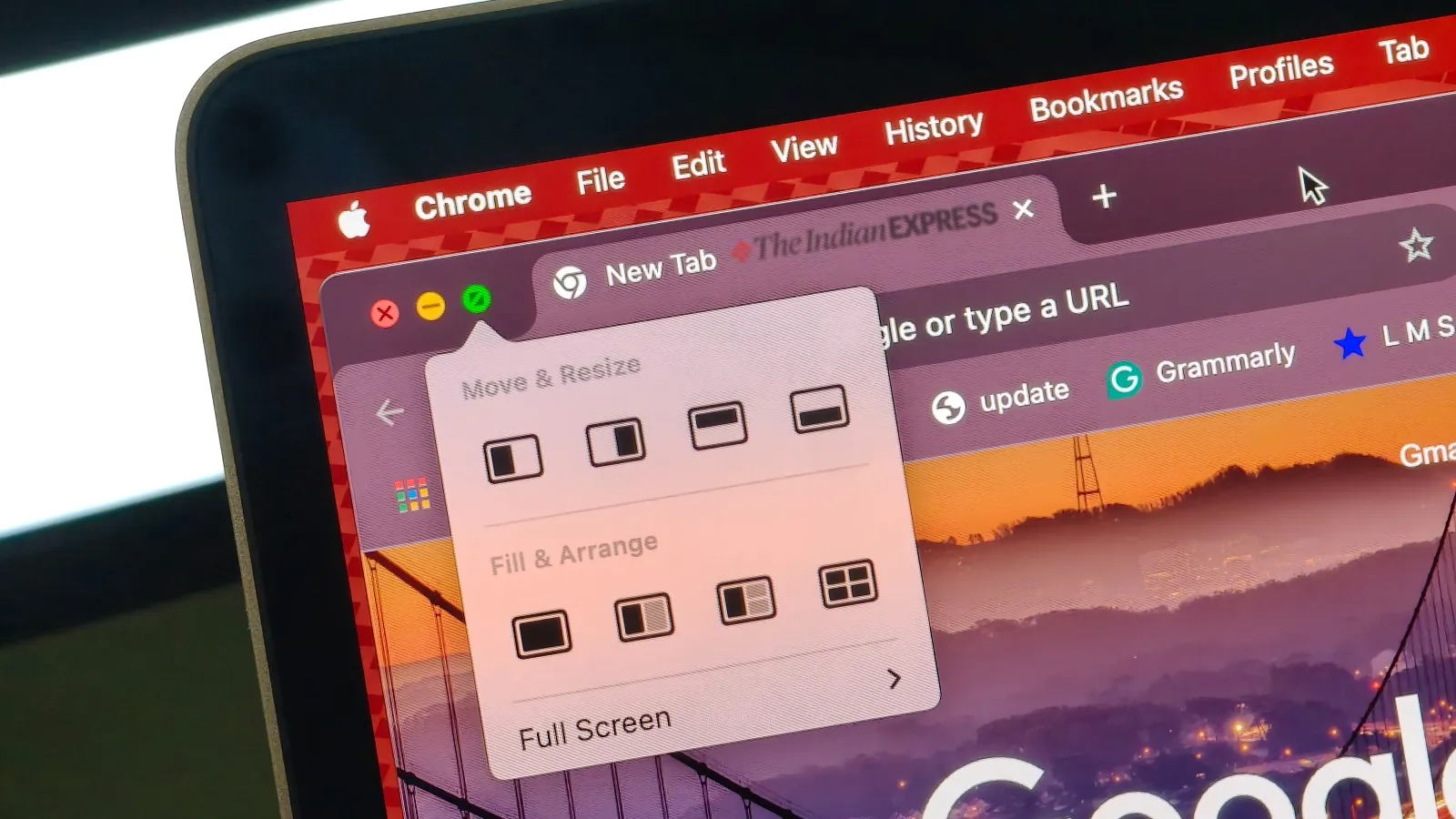 Split View makes it easy to resize and arrange app windows. (Image credit: Vivek Umashankar/The Indian Express)
Split View is only available on Macs running on macOS Sequoia 15. So make sure you are on this latest version. To access Split View on Mac, hover over the green button on the top left corner to open the Split View menu.
From there, select the action that you would like to do, where you can either resize a single window, arrange two, three, or four apps on a single screen, or move and resize a specific app to either side of the screen.