5 min read
© IE Online Media Services Pvt Ltd



 While reposting a picture or video on Instagram is easy it is important to ask permission from the user before re-sharing it and give due credits
Instagram has been around for more than six years now and for some (those avid travellers, foodies) it has become a part and parcel to click and share their moments on the social platform. While double tapping or putting a comment on those intriguing photographs is easy, there is no customary process to repost other users content in your Insta account. However, if you want to give credit to the original photographer there are few alternate solutions that you can try to regram a post.
Ideally, you can take a screenshot of the picture that you like, resize it, edit and filter if you want and then repost on Instagram. But in case if you want to repost a video, you need to first download an app either from iOS App Store or Google Play Store. Here’s how you can quickly repost videos and photos on Instagram
Step 1- First you need to download a repost app for Instagram like Instarepost or Repost for Instagram; for this, you can check the respective App Store or Google Play Store
Step 2- The app once downloaded and installed, open your Instagram account and click on the feed to search for the image or video. You can also search for the photo/video by entering the username in the search bar in the Explore tab
Step 3- Once you have found the post, tap the three grey dots icon that you will see in the upper right corner of the post
Step 4- The grey icon will pop up a few options, select the “Copy Link” option
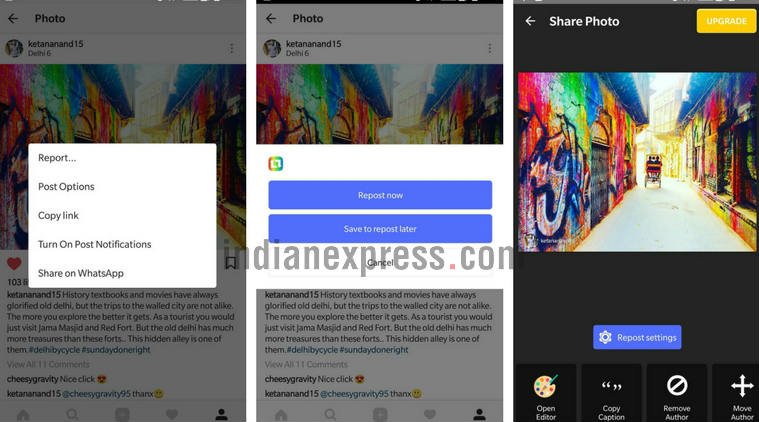 There are several repost app for Instagram like Instarepost or Repost for Instagram that you can check either on App Store or Google Play Store
Step 5- The repost app (we downloaded the InstaRepost app) that you have installed in your device will automatically detect the link that you have copied and pop up a question asking whether you want to repost instantly or save it for later, select the suitable option
Step 6- If you select the ‘Repost now’ button it will direct you to the next page showing Repost settings
Step 7- The Repost Settings show a few options like- Open editor to add doodles, stickers etc, Copy caption, Remove Author, Remove Watermark (used to remove InstaRepost logo on the reposted video), Move logo/author (to reposition it to another part) etc
Step 8: Once you are done making the changes tap on the green-arrow Repost icon at the bottom centre, the photo or the video will appear on New Post window
Step 9: You can rescale it, add filters like the usual Instagram post and then tap Next, it will lead you to ‘Share to’ page
Step 10: It is worth mentioning that the repost option doesn’t include the original post’s citation, so even if you want to add your own caption or add any filters we would suggest putting user’s name by adding @username and seek his/her permission before making any changes to the original photo/video and then click the share button.
Alternatively, you can follow the traditional method of taking a screenshot and then sharing it on your Insta account in case if you don’t have enough space to save an app on your smartphone. But like we said, it is only useful when it comes to reposting a picture. To regram a video and show it to a wider audience you will have to take help of these repost apps.
While these are affordable solutions, you need to obtain permission from the Instagram user whose content you want to repost. Instagram’s Terms of Use says you can’t post anything that ‘you have copied or collected from the Internet that you don’t have the right to post.’ You need to ask the Instagram user to repost a video or picture and give due credits. For this, you can direct message the user or add a comment to their post to let them know that you want to repost their content. In case if you can’t reach the user simply give the credit by adding their username on Instagram and tag the account as well.