2 min read
© IE Online Media Services Pvt Ltd



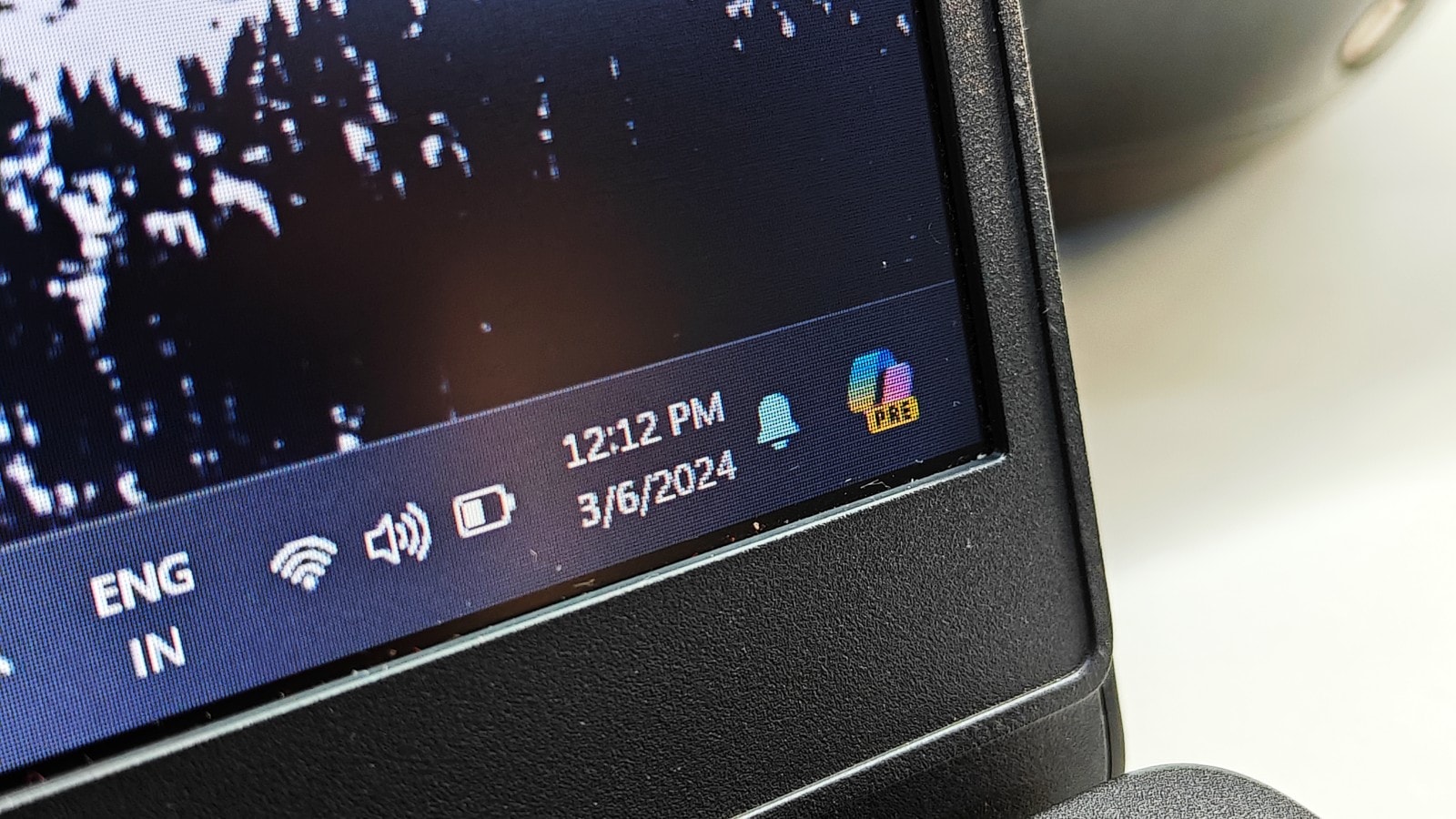 Copilot is still in its 'preview' stage so its functionalities are pretty limited. (Express image)
Microsoft’s Copilot AI assistant is seemingly everywhere these days – embedded in the Edge browser, present on the Windows 11 taskbar, and the company can’t seem to decide on a permanent spot for its icon. Previously situated on the right side of the search bar, the Copilot icon has now been relocated to the far-right corner of the taskbar.
While Copilot excels at web searches, providing additional context for open webpages, and summarising content, its capabilities as a comprehensive assistant are somewhat stunted. It struggles to perform system-level tasks like adjusting screen brightness or launching applications.
If you find Copilot more of an annoyance than a help, Windows 11 allows you to disable it. Simply navigate to Settings > Personalisation > Taskbar and toggle off the Copilot option.
However, if the lack of system functionality is your primary gripe, Microsoft claims to be addressing this limitation. In a recent blog post, the company announced that starting in late March, Copilot will enable users to adjust PC settings and access various tools using voice or text commands. For instance, you’ll be able to enable or disable Battery Saver mode simply by typing “enable battery saver” or “turn off battery saver.”
Microsoft didn’t clarify how typing out commands would be more convenient than manually adjusting settings through a few clicks in the Settings app. Additionally, the company is introducing ‘Voice Shortcuts,’ allowing users to perform simple tasks using brief voice commands.