4 min read
© IE Online Media Services Pvt Ltd



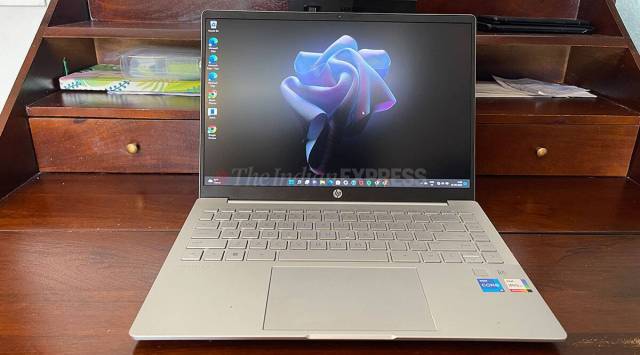 This laptop comes with Windows 11 OS and is powered by a 12th Gen Intel processor (Image credit: Shruti Dhapola / Indian Express)
 If you are going to get a new budget laptop, there is a high possibility that the device might be running on the Windows operating system. Laptops with Windows OS come in all shapes and sizes. From entry-level notebooks that just cost around Rs 20,000 to high-end gaming machines with costs over Rs 3,00,000, there is a Windows laptop for everyone.
However, as all these notebooks run on the same software, an entry-level laptop might not feel as smooth as a high-end machine. This is more evident on older laptops, where, the performance is also limited due to the limited availability of storage and memory.
Here are five ways to speed up your Windows laptop.
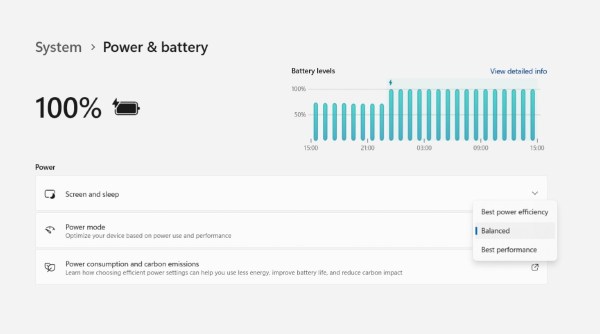 Windows offers power efficiency, balance, and performance modes.
If you have a fairly modern laptop, then make sure that the power mode is set to the best performance to get the most out of that machine. If you have a laptop with Windows 11, go to settings > system > power and battery > and select best peformance. Do note that, you can only set the power mode of the laptop when it is connected to the charger on some laptops. The best performance power mode will enable the CPU and GPU to run at their highest clock speed by offering enough power envelope.
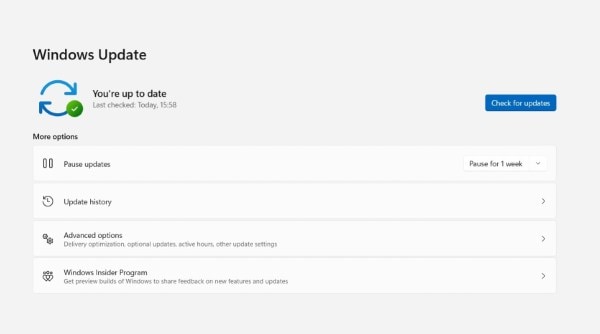 The latest drives ensure that the hardware gels with software in the most optimised way.
Always install the latest available software update to ensure that your laptop will work flawlessly. Newer drivers will not only fix the issue, but they will also improve the overall performance of the machine, especially on newer models. Go to settings > windows update > and click on check for update. Make sure that all the latest drivers are installed on the machine.
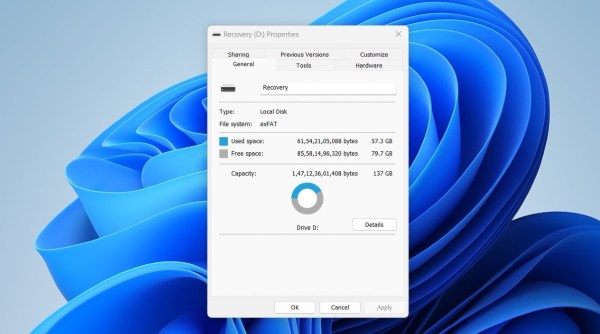 Use your pen drive or an SD card as RAM on a Windows laptop.
If you have a laptop with a limited amount of RAM, then activating ReadyBoost technology will enable virtual RAM using an SD card or a pen drive. Do note that, one needs to have an external storage device with at least 500MB of free storage to enable Ready Boost technology. Go to file manager right click on the external storage device > click on properties > click on ReadyBoost and select the amount of storage that you want to convert into virtual memory.
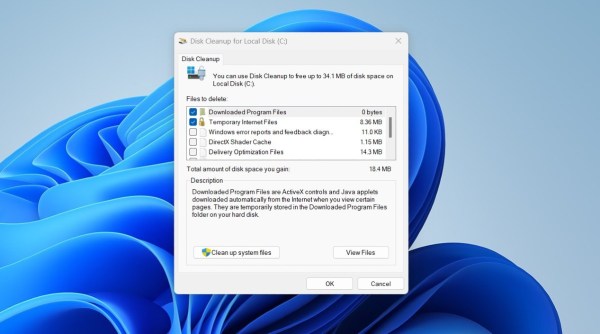 Disk Cleanup will clear the system cache with just a single click.
Disk cleanup is a built-in tool on Windows OS, search for disk cleanup and select the primary drive, which is usually the Local Disk (C:). Make sure to uncheck the downloaded program file to save the files stored on the disk. This app will clear the cache and will make your laptop feel faster at least for a while.
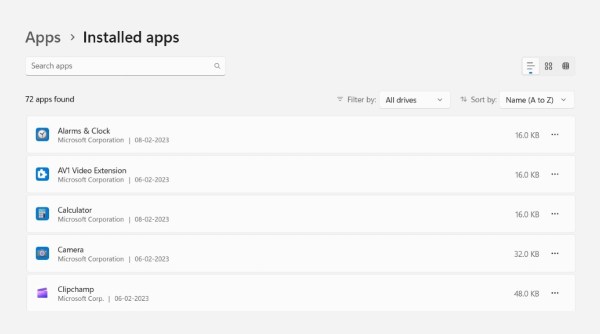 Removing third-party apps will free up storage and system resources.
Some laptops come with third-party apps and software which not only take up the device store but will also consume compute resources. Go to settings > apps > installed apps > and delete the apps that you might not use. This will free up internal storage and could speed up the laptop.