With sales nearing 100 million the PlayStation 4 has become the most dominant console of this generation, a figure that puts the machine ahead of Microsoft’s Xbox One and Nintendo’s Switch. Of course, the PS4’s long list of exclusives (“God of War”, ”Days Gone”, “Uncharted 4: A Thief’s End”, to name a few) and third-party titles helped the console leapfrog ahead of the competition.
Sony has also kept its promise of constantly updating the console with security fixes and new features. Great hardware is meaningless without an easy-to-use interface and efficient software (look at the Xbox One; it has the most confusing interface among the eighth-generation consoles).

While the Sony PS4 has the most user-friendly interfaces on a console, there are plenty of not-so-obvious tips and tricks you might not know about. Here are six tips to help you become a PS4 power user. Read on.
PlayStation 4 tips and tricks: How to change your PlayStation Name
Sony has finally given the option to all PlayStation owners to change their PSN name. There are two ways to do to get a new name on your PSN account. One way is to change your PSN name through your web browser and the other option to change your PSN name directly from your PlayStation 4. I chose the second option because it is much more convenient.
To do this, go to the settings page of your console and select the “Account Management” option, followed by “Account Information,” “Account Profile,” and finally “Online ID”. Keep in mind that you only get one free PlayStation Network ID change. Subsequent name changes cost $10, but you can get them for $5 if you’re a PlayStation Plus member.
PlayStation 4 tips and tricks: How to play PS4 games on iPhone and iPad with remote play
It is now possible to play all your PlayStation 4 games on your iPhone and iPad through an option called Remote Play. This is the first time PS4 owners can stream their games to iOS devices like the iPhone and iPad. The “Remote Play” feature already supports a number of devices: the PS Vita, Xperia smartphones, PC, and Mac.
Here’s how you can use Remote Play through iPhone or iPad with your PS4
Story continues below this ad
First things first, update your PlayStation 4 to firmware 6.50. Second, download the PS4 Remote Play app from the Apple App store. It’s a free download. Once installed, you need to open it and log into your PlayStation Network account. Make sure that you are using Wi-Fi as the app will only work across the home network. After login, the app will search your network for the PS4 you want to use.
Just remember that the console needs to be turned on as you need to be logged into the PS4. Both your iOS device and the PlayStation 4 will need to be connected to the internet.
Both your iOS device and the PlayStation 4 will need to be connected to the internet.
In case if your PS4 cannot be found automatically, you will need to manually register the iOS device. To do that, go to Settings > Remote Play Connection Settings > Add Device, and then enter the code provided on the Remote Play App.
Once connected, you’ll see your PS4 home screen displayed on your iPhone alongside a row of touch controls that mimic the buttons on a DualShock 4 controller. Unfortunately, Sony’s DualShock 4 controller is not compatible with Remote Play.
Story continues below this ad
It’s important to note that while most games are compatible with Remote Play, not every game will be supported
PlayStation 4 tips and tricks: Use a keyboard and mouse with your PS4
The best way to play Fortnite on the PS4 is by connecting mouse or keyboard. You can use any wired USB-powered mouse or keyboard with your PS4, or connect your keyboard and mouse adapter (a wireless dongle) to the PS4 USB port. You may have to wait 30 seconds while the PS4 detects the mouse or keyboard. In case you are using a Bluetooth keyboard, go to Settings > Devices > Bluetooth Devices and then get your PS4 to scan for nearby devices.
With the use of the Share button on the left-hand side of the controller, you can take and share screenshots and videos
PlayStation 4 tips and tricks: How to take a screenshot
With the use of the Share button on the left-hand side of the controller, you can take and share screenshots and videos. By default, pressing the Share button will bring up the share menu that lets you choose between photos and videos. Users can share that media directly to social networks like Facebook, or save them to your hard drive.
PlayStation 4 tips and tricks: Change your controller’s light bar brightness
One of the most annoying things about the PS4 is the battery life of the DualShock 4. Well, yes, there is a way to increase the battery life of the controller by turning down the brightness of the light bar on the front. Go to Settings > Devices > Controllers and choose the brightness options to customise it.
Story continues below this ad
PlayStation 4 tips and tricks: Download games remotely
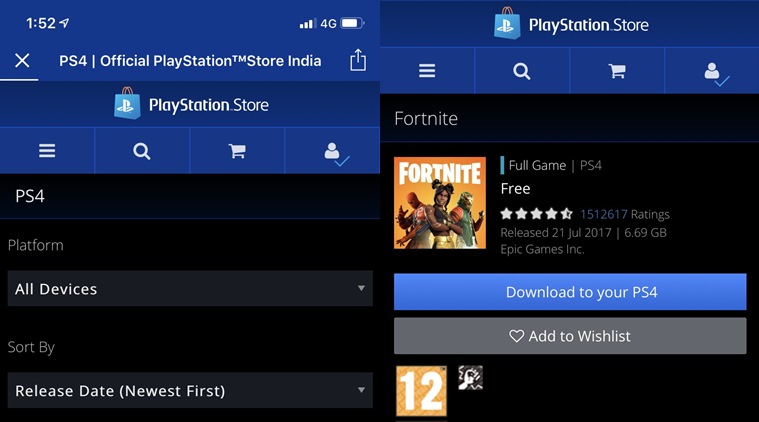
Do you know that PS4 owners can use the PlayStation mobile app to buy games directly from the PlayStation store? This feature is very useful when you are away from the console.
Before downloading games to your PS4 remotely, make sure that your PS4 will have to be in “Rest Mode”. To check this setting on your PS4, go to Settings > Power Save Settings > Set Features Available in Rest Mode. In this mode, your console goes into sleep mode rather than completely switched off. In this state, the PS4 is connected to the internet and your console can automatically download updates as they are released.
You can download games on the PS4 from your smartphone using the app for iOS or Android.
Now you can download games on the PS4 from your smartphone using the app for iOS or Android. The process of downloading a game using the app is simple and straightforward. Fire up the PlayStation app for iOS or Android, open the PlayStation store, click on the profile icon on the top right, then on Download List and you’ll see all your purchases past and present.
If you wish to download games on the PS4 from a web browser, follow this process. Visit store.playstation.com, sign in to your PSN account and you will find the Download List option by clicking on your username in the top right-hand corner. This process works exactly the same on the website as it does on the PlayStation app.


 7 min read


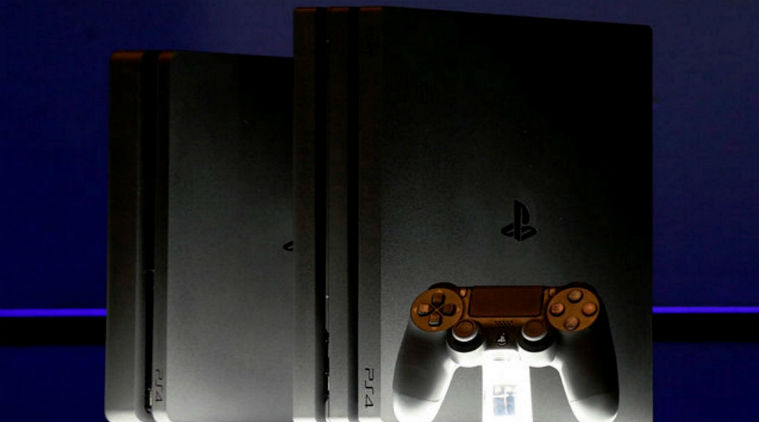 Here are six tips to help you become a PS4 power user.
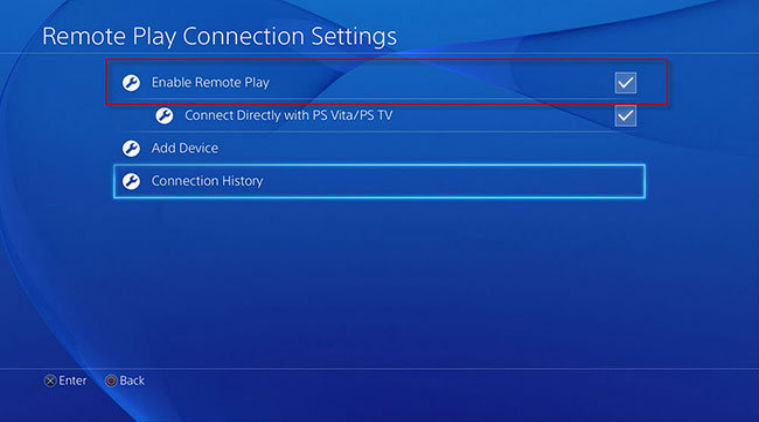 Both your iOS device and the PlayStation 4 will need to be connected to the internet.
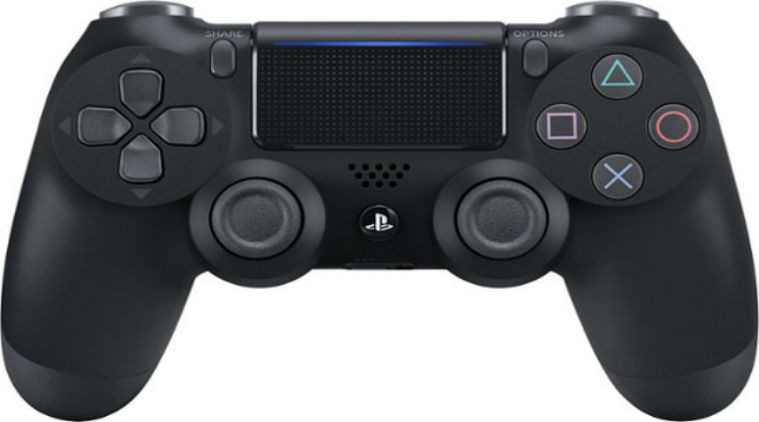 With the use of the Share button on the left-hand side of the controller, you can take and share screenshots and videos
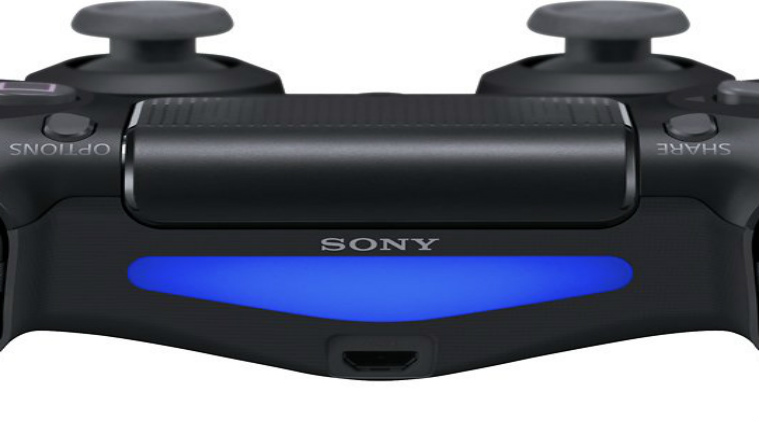 There is a way to increase the battery life of the controller by turning down the brightness of the light bar on the front.
 You can download games on the PS4 from your smartphone using the app for iOS or Android.