Step-by-step guide: How to sync your Android phone with Windows PC with Microsoft Phone Link
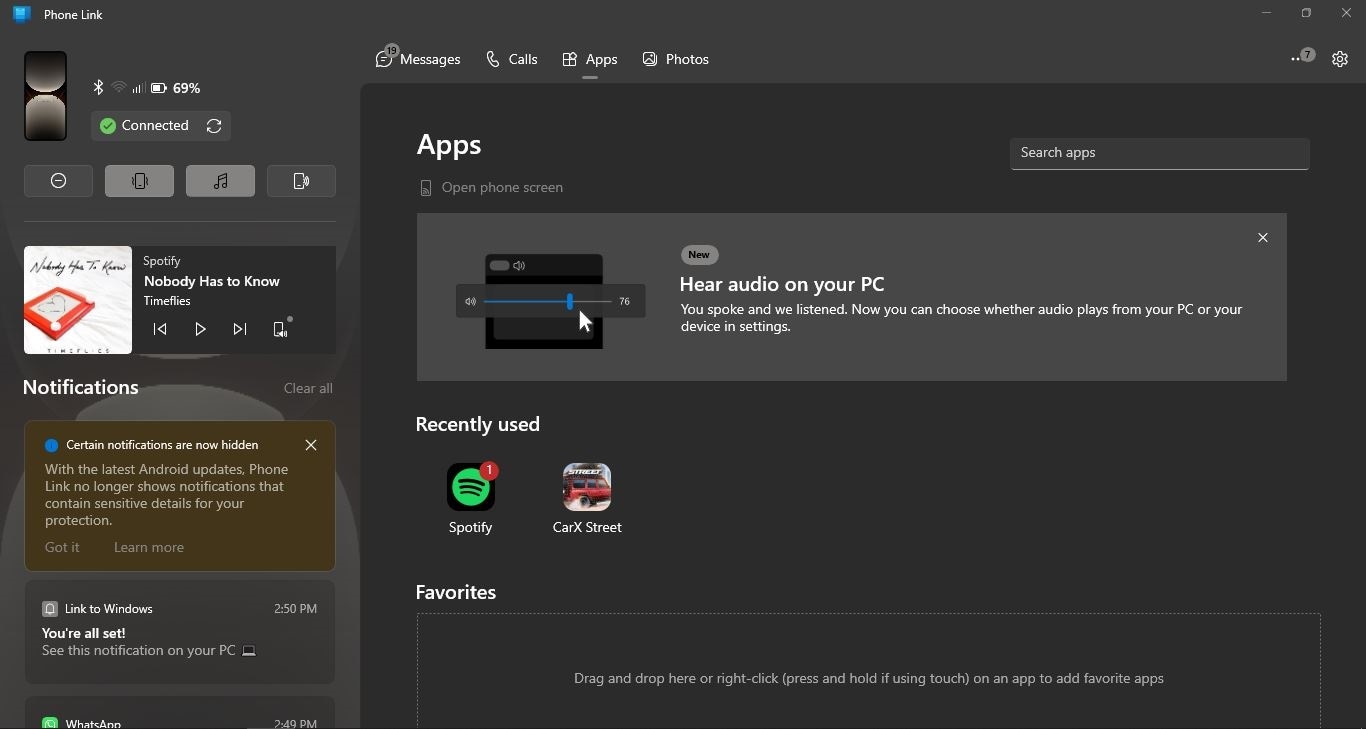
Microsoft's Phone Link app lets you reply to messages, manage notifications, make and receive calls and mirror apps from your phone to your Windows PC.
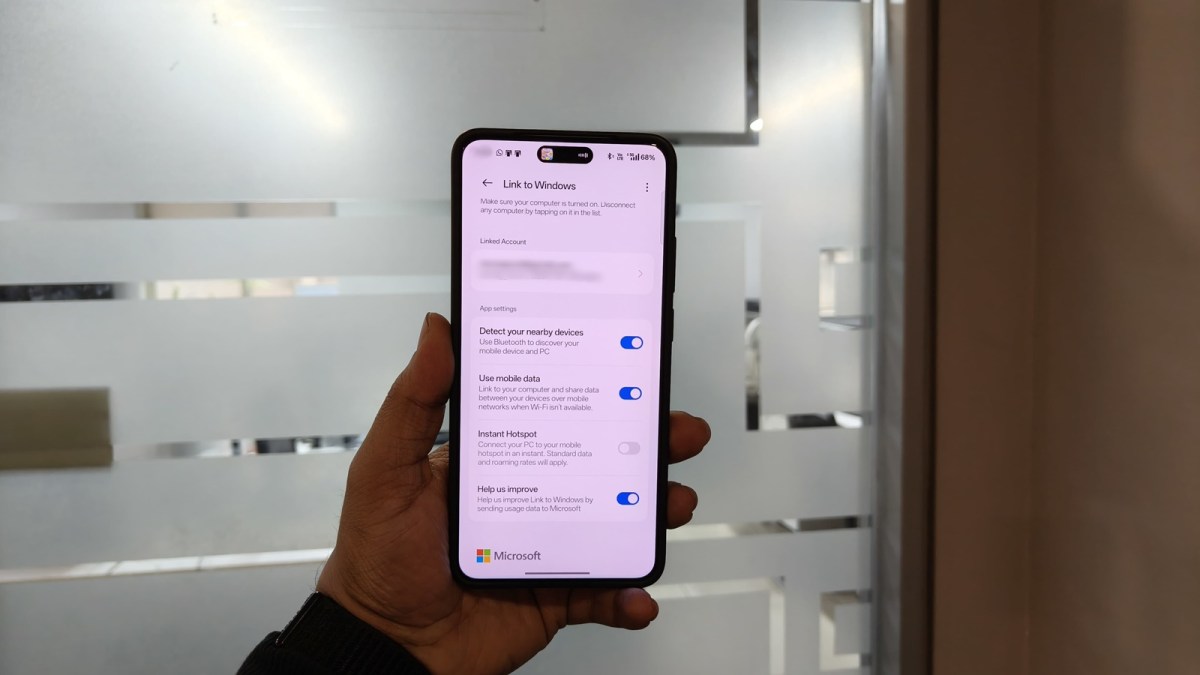
The companion to Windows Phone Link is an Android app called "Link to Windows". (Express Photo)
The Google Play Store offers numerous apps for syncing your Android device with Windows, but Microsoft’s Phone Link is one of the simplest options for mirroring your phone on your PC. Launched in 2018, Phone Link connects to Android using either Bluetooth, Wi-Fi, or mobile data and offers a multitude of features.
What can Phone Link do?
While Phone Link does miss out on some features that third-party apps like AirDroid offer, here’s what it can do in a nutshell.
Make and receive calls
Send and reply to messages
Check notifications on the phone
View and transfer photos
Control media playback
Mirror apps
Instantly create a hotspot
Copy and paste between Android and Windows
Share files wirelessly
However, some features like app mirroring may be limited to phones from Samsung and Honor, but most functionalities are available irrespective of the manufacturer. Another thing to note here is that you will need a Microsoft account to use Phone Link and your Windows PC and Android device need to be on the same network for some features to work.
You’ve Read Your Free Stories For Now
Sign up and keep reading more stories that matter to you.
Phone Links allow you to control your Android device from your Windows PC. (Express Photo)
How do I set up Microsoft Phone Link?
Microsoft Phone Link is pre-installed on most PCs, but if you don’t have the app for some reason, download and install it from the Microsoft Store.
Some phones from Samsung, Realme and others ship with the Link to Windows app, but if isn’t preinstalled on your device, simply head over to the Google Play Store and install the Link to Windows app from Microsoft.
Once done, open the Phone Link app on your PC and on the screen that appears, select Android. Now, grab your phone, launch the Link to Windows app and sign in with the same Microsoft account you use on your Windows PC.
Scan the QR that appears on your Windows machine using your Android phone, give the app the required permissions and you are good to go. If Phone Link requires additional permissions, it will ask you to grant them on your phone.
Story continues below this ad
Now that the Phone Link app is set up, you will be able to transfer files wirelessly, make and receive calls, reply to notifications and even mirror Android apps to your PC.
Anurag Chawake is a Senior Sub-Editor at indianexpress.com. His fascination with technology and computers goes back to the days of Windows 98. Since then, he has been tinkering with various operating systems, mobile phones, and other things. Anurag usually writes on a wide range of topics including Android, gaming, and PC hardware among other things related to consumer tech. His Twitter, Instagram, Facebook and LinkedIn user name is antechx. ... Read More