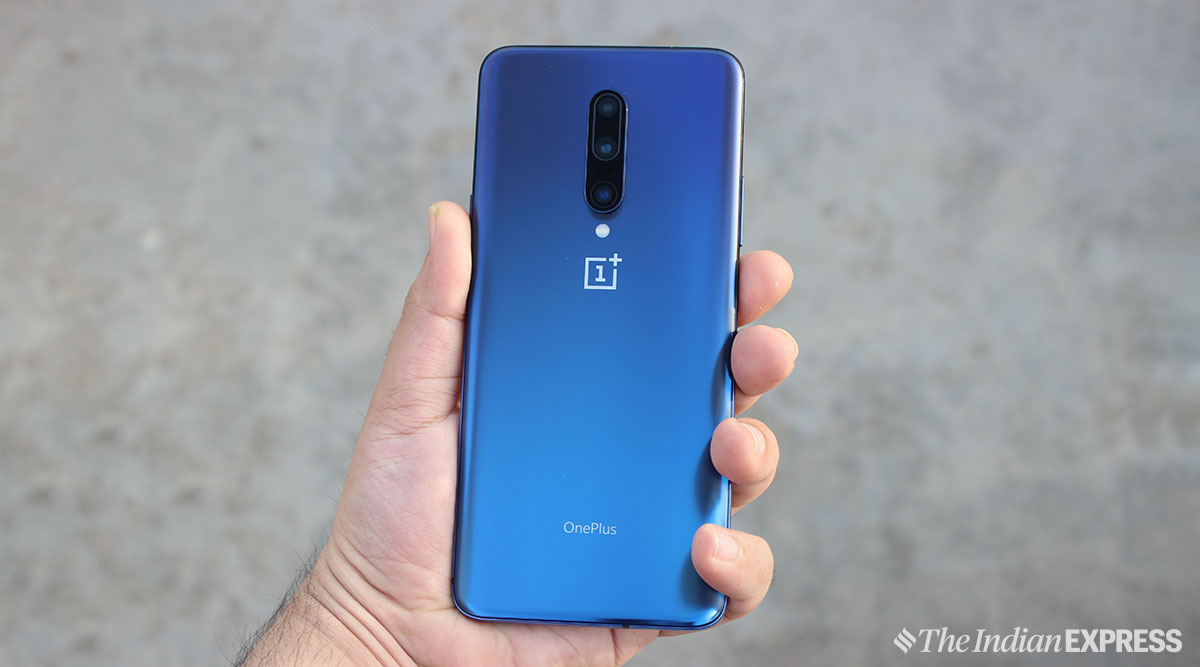
The OnePlus 7 has six great features buried in settings you should check out. (Express photo by Anuj Bhatia)
The OnePlus 7 and OnePlus 7 Pro are here and they feature different screen sizes and price points, in an attempt to appeal to a wide range of consumers. With improved displays, more powerful processors and cameras, there’s still a lot we don’t know about the phones. Worry not – we have got the helpful OnePlus 7 tips and tricks so you can get most out of your new phones.
In this guide, we will tell you how to get familiarise with OxygenOS which has been updated to OxygenOS 9.5. These (below) tips and tricks will help you get started with the OnePlus 7 and Android Pie on OxygenOS.
You’ve Read Your Free Stories For Now
Sign up and keep reading more stories that matter to you.
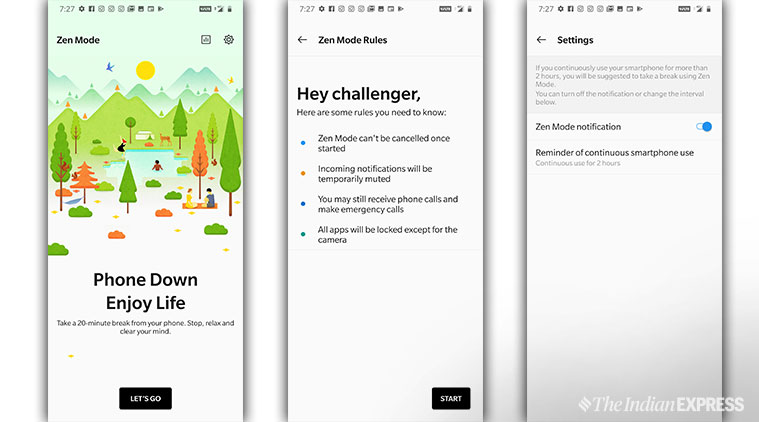
Oxygen OS 9.5 is getting a brand new feature called ‘Zen mode.’ This is essentially a spin on the traditional Do Not Disturb feature, but this is far more deeper. Instead of just hiding your notifications it locks your phone so you can’t use it for 20 minutes. When this mode is enabled you can only access the camera and incoming calls. And yes, you will be able to make emergency calls.
Here’s how to enable the Zen Mode:
Drop down the notifications/settings shade, and swipe across, then tap on the Zen Mode option.
Zen Mode encourages you to put your smartphone more often.
OnePlus 7 tips and tricks: Fnatic mode
A new gaming mode is being introduced called ‘Fnatic mode’ that optimises all the phone’s hardware features like RAM, CPU and wireless connections. The idea is to make the game runs smoothly on the device without any external intervention like notifications and calls. Plus, there’s a ‘Display enhancement’ toggle that helps to boost the overall brightness of the display. This mode is currently exclusive to OnePlus 7 Pro.
Here’s how to use Fnatic mode:
Drop down the panel as usual, and swipe across, then tap the Gaming mode option.
The idea is to make the game runs smoothly on the device without any external intervention like notifications and calls
OnePlus 7 tips and tricks: Screen recorder
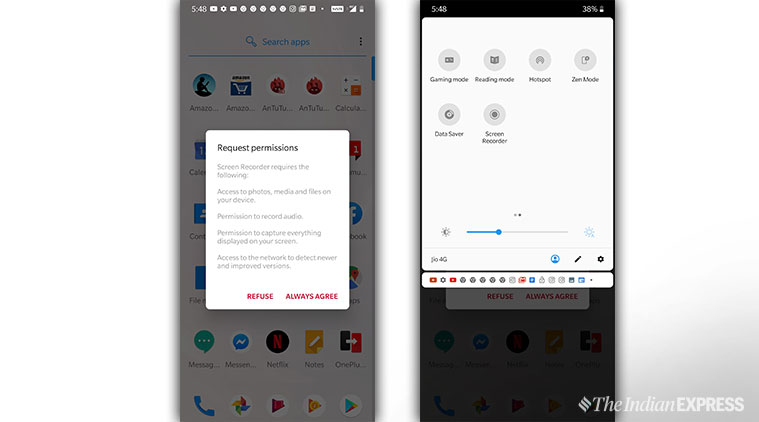
Oxygen OS 9.5 is getting a new in-built screen recorder that will allow you to record video and audio on the phone. There’s also the option to record external sound via the microphone. It’s a super useful feature when you want to record a gaming session.
Story continues below this ad
Here’s how to use the screen recorder option on the OnePlus 7 Pro
The best part of a native screen recorder is that it comes with a lot of customised options. For example, you can record the display at its original resolution – QHD+ on the OnePlus 7 Pro or scale it down. Plus, you can also adjust the bit rate of the recording between 20Mbps to 1Mbps. Then there’s also the option to change orientation, show on-screen touches, and automatically pause recording when the screen is off.
OnePlus 7 tips and tricks: Change the screen unlock animation
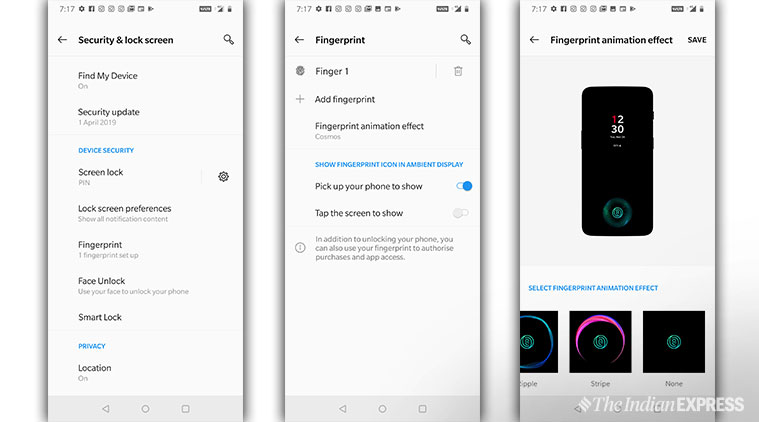
When you unlock the OnePlus 7/OnePlus 7 Pro using the in-display fingerprint scanner, a flashy animation appears. If you want to change the screen unlock animation, it can be modified as per your choice. In fact, there are a ton of alternative available.
Go to Settings > Security & lock screen > Fingerprint, then type in your PIN and select “Fingerprint animation effect”. Now choose from one of three different animations.
It’s easy to adjust the animation of the in-display fingerprint sensor.
OnePlus 7 tips and tricks: Gestures-only navigation
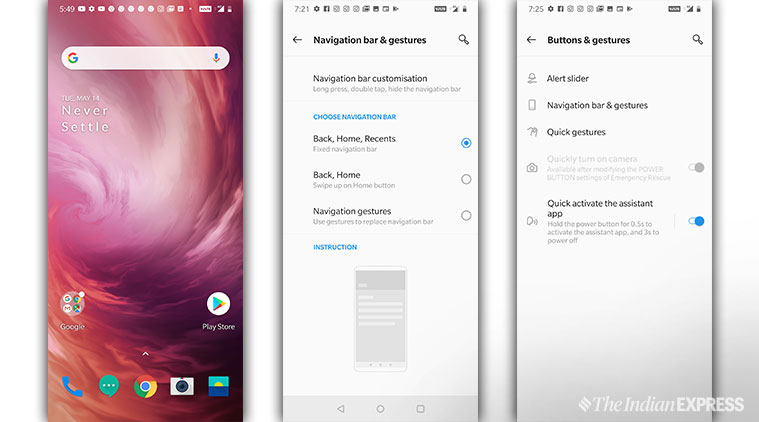
OnePlus has included gestures-only navigation in Oxygen OS. It’ll be off by default, but you can always turn it on. Go to Settings > Buttons & gestures > Navigation & gestures, and then choose the “Navigation gestures” option. When you turn this mode on, there are no virtual buttons on the screen. All you need to control your phone with swipes. Home is a swipe up from the bottom of the display; multitasking is swipe up and hold; and back is a swipe up on the bottom left or right.
Story continues below this ad
It’ll be off by default, but you can always turn it on
OnePlus 7 tips and tricks: Screenshot editor
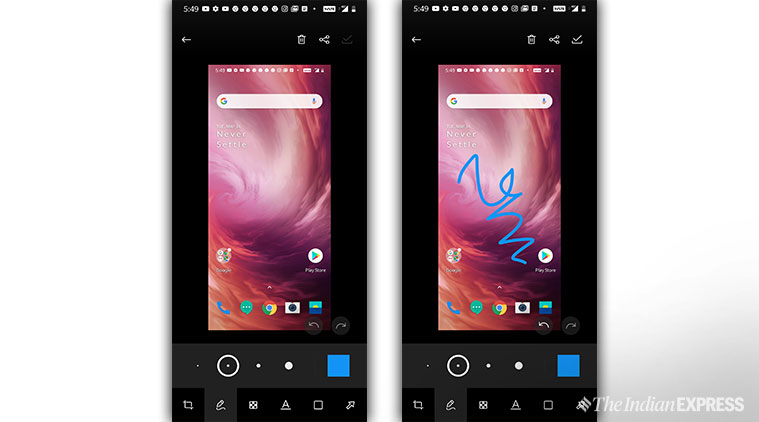
Do you know that you can use screenshot editor to quickly edit screenshots right after taking them? OnePlus has finally added screenshot editor in Oxygen OS that allows you to do all lets you do things like add text to your screenshots, doodle anything with your finger, crop and much more.
Screenshot editor is built natively in Oxygen OS 9.5.
To take and edit a screenshot quickly, do this:
* Capture what’s on the screen of your OnePlus 7 device.
*A thumbnail appears for a few seconds after taking a screenshot.
Story continues below this ad
*Use Screenshot editor’s built-in tools to create text, crop, add a signature and more.
Anuj Bhatia is a seasoned personal technology writer at indianexpress.com with a career spanning over a decade. Active in the domain since 2011, he has established himself as a distinct voice in tech journalism, specializing in long-form narratives that bridge the gap between complex innovation and consumer lifestyle.
Experience & Career: Anuj has been a key contributor to The Indian Express since late 2016. Prior to his current tenure, he served as a Senior Tech Writer at My Mobile magazine and held a role as a reviewer and tech writer at Gizbot. His professional trajectory reflects a rigorous commitment to technology reporting, backed by a postgraduate degree from Banaras Hindu University.
Expertise & Focus Areas: Anuj’s reporting covers the spectrum of personal technology, characterized by a unique blend of modern analysis and historical context. His key focus areas include:
Core Technology: Comprehensive coverage of smartphones, personal computers, apps, and lifestyle tech.
Deep-Dive Narratives: Specializes in composing longer-form feature articles and explainers that explore the intersection of history, technology, and popular culture.
Global & Local Scope: Reports extensively on major international product launches from industry titans like Apple and Google, while simultaneously covering the ecosystem of indie and home-grown tech startups.
Niche Interests: A dedicated focus on vintage technology and retro gaming, offering readers a nostalgic yet analytical perspective on the evolution of tech.
Authoritativeness & Trust
Anuj is a trusted voice in the industry, recognized for his ability to de-jargonize trending topics and provide context to rapid technological advancements. His authority is reinforced by his on-ground presence at major international tech conferences and his nuanced approach to product reviews. By balancing coverage of the world's most valuable tech brands with emerging startups, he offers a holistic and objective view of the global technology landscape.
Find all stories by Anuj Bhatia here.
You can find Anuj on Linkedin. ... Read More