4 min read
© IE Online Media Services Pvt Ltd



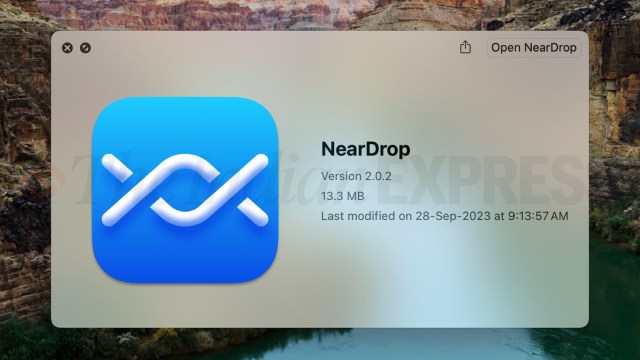 NearDrop offers Nearby Share like functionality on Mac (Image credit: Vivek Umashankar/The Indian Express)
 When it comes to seamless integration, the cross-platform compatibility between Android and Windows is unique as they jointly deliver efficiency. On the other hand, iPhones work well with Windows PCs. However, there is no such compatibility between Android phones and Macs making it difficult to wirelessly share files between them.
Incidentally, the last time Google updated Android file transfer for Mac apps was in 2012. The outdated app comes with a host of limitations making it difficult to transfer large files between an Android phone and Macs despite the use of USB.
While Google recently released Nearby Share for Windows, which makes it easy to transfer files wirelessly between a PC and an Android phone, there is no such official tool available for Mac. However, there is an app called NearDrop that offers the functionality of Nearby Share on Mac for free. If you are an Android smartphone and a Mac computer user, this will be a handy guide to seamlessly share files between these devices.
According to NearDrop’s developer Gregory K on Github, the app is built partially on Google’s Nearby Share, which works with most modern Macs with Wi-Fi connectivity. In this case, the Android device and the Mac have to be connected to the same Wi-Fi network.
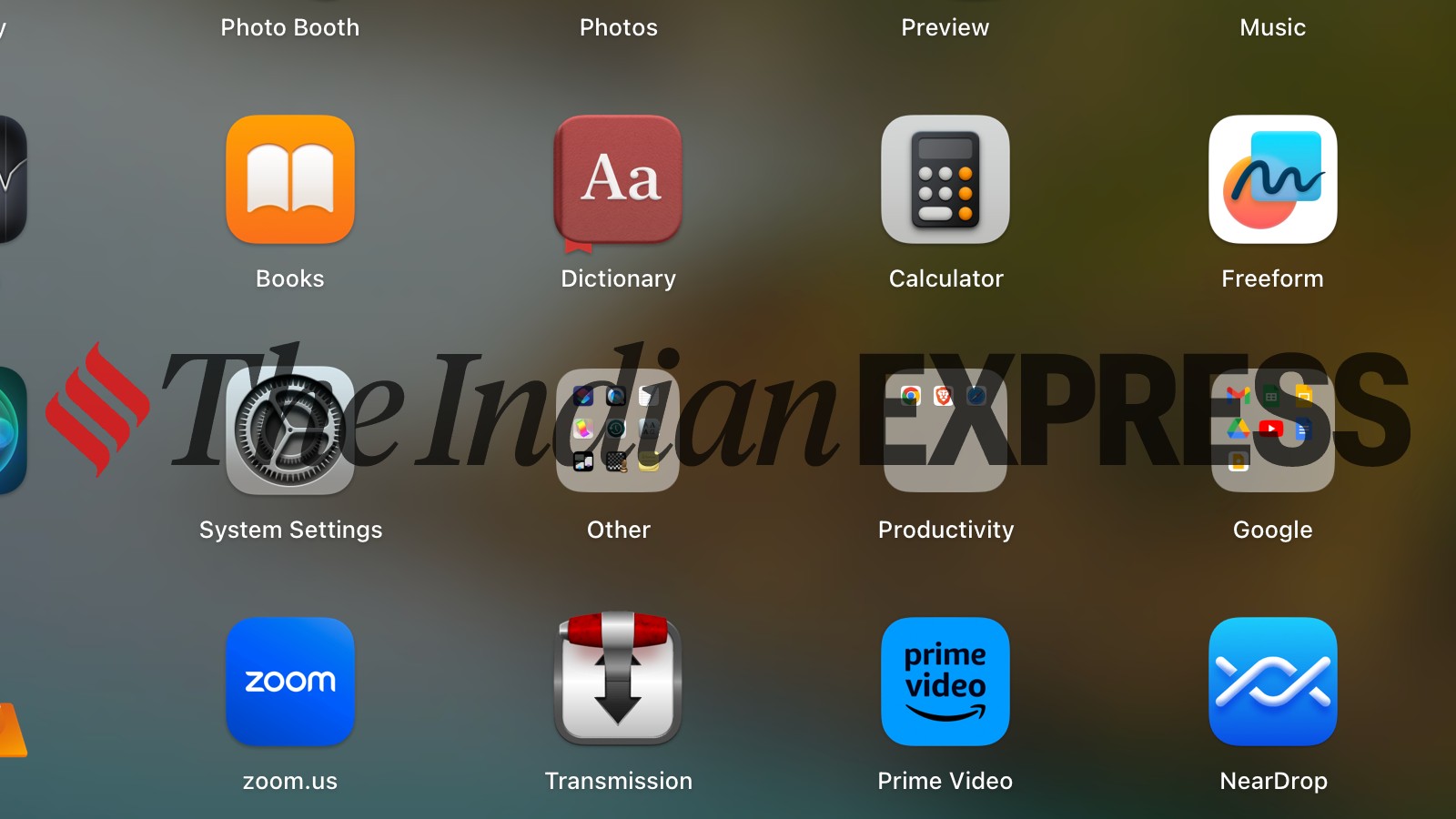 NearDrop in the macOS launchpad (Image credit: Vivek Umashankar/The Indian Express)
NearDrop is not available on the App Store, instead, it has to be downloaded from GitHub via a link in zip format, which has to be extracted on the Mac. Later it has to be copied into the application folder by simply dragging it.
WarpShare: https://t.co/W6h5jqrCiy
(If you want my compiled APK, subscribe to me on Patreon/X.)
NearDrop: https://t.co/RkGSW22Pmq
Nearby Share from Google: https://t.co/e1X7ZMRZog
Nearby Sharing Windows 10/11: https://t.co/uSwkZBNb27
KDE Connect: https://t.co/EnCIPUSngP
— Mishaal Rahman (@MishaalRahman) August 23, 2023
Unlike installing an app from a registered developer, which works with just a single click, NearDrop is an app from an unidentified developer and one needs to whitelist the app from the System Settings > Privacy and security > scroll down and select Allow the app (NearDrop) to run.
Once whitelisted, just go to the launch pad, and select NearDrop, which will be available on the menu bar.
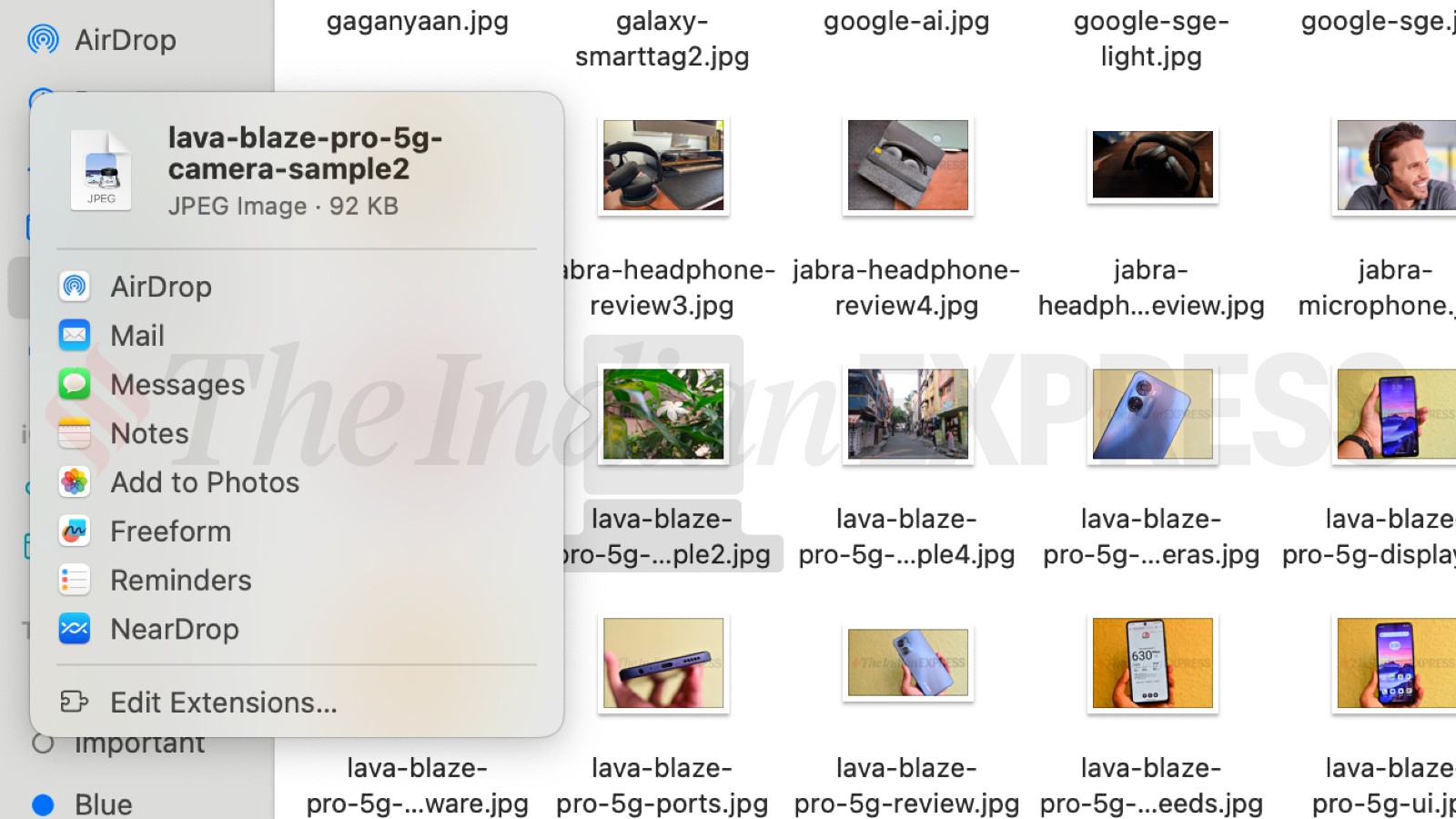 NearDrop in the Mac share menu (Image credit: Vivek Umashankar/The Indian Express)
Make sure that your Mac and Android phone are on the same wireless network and make sure NearDrop is running in the background.
Double-click on the file that you are interested in sharing, and click on share from the menu option. For the very first time, click on edit extensions and add NearDrop to the extension from the menu.
Now, just select NearDrop from the share menu and your Mac will start searching for Android phones with Nearby Share. Make sure the visibility on the Nearby Share is set to everyone. In some cases, if you don’t see your phone, just go to Google File Manager and select Nearby Share.
To receive your file, just click on accept and you will be able to complete the file transfer.
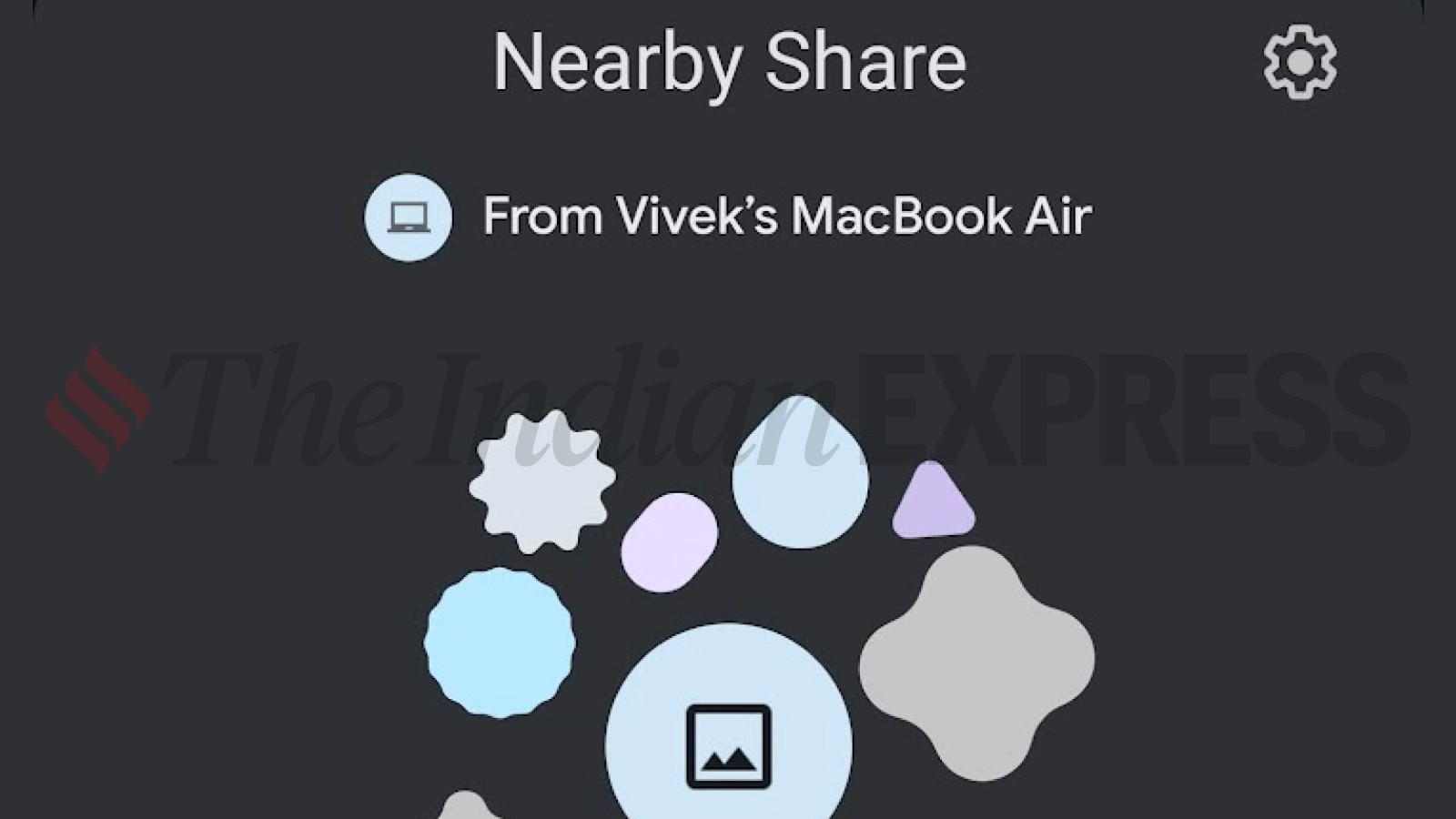 Share files from Android to Mac using NearDrop (Image credit: Vivek Umashankar/The Indian Express)
You can also receive large files from an Android device to your Mac using NearDrop. Open the app, and make sure the visibility is set to everyone. Select the file that you want to share from your Android phone and click on the MacBook icon. Accept the notification that you receive on your Mac to complete the file transfer from your Android phone.