2 min read
© IE Online Media Services Pvt Ltd



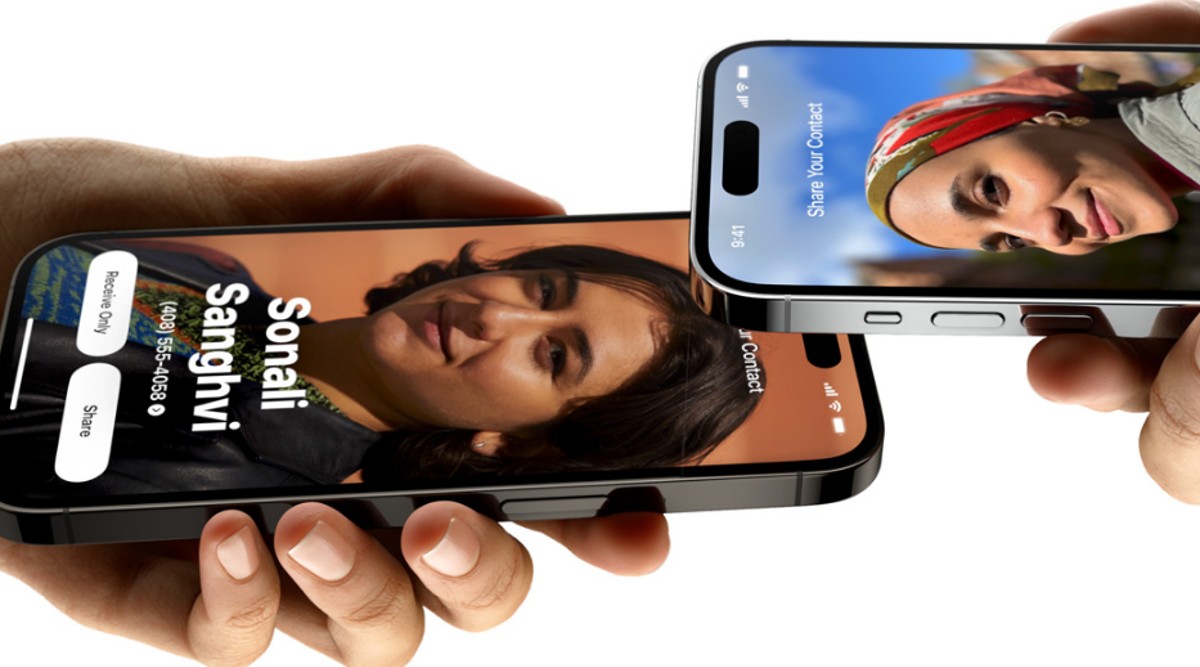 NameDrop is available for iPhones running on iOS 17 (Image credit: Apple)
 Apple released the stable iOS 17 update to eligible iPhone users on Tuesday. The latest iteration of Apple’s OS for iPhone introduces an array of new features and one such capability that caught our attention is NameDrop, which allows iPhone users to share their contact with other iPhone and Apple Watch users with just a tap.
What makes this feature special is the fact that one can share their contact with friends, family, colleagues, and even strangers without unlocking the iPhone. Here is a complete guide on how you can make the most of the new NameDrop feature introduced on iOS 17 a derivation of AirDrop, which allows iPhone, iPad, and iPhone users to transfer digital content wirelessly.
The best thing about this feature is that there is no setup involved and it is enabled by default. Bring your iPhone near to another iPhone and the contact information will be automatically shared. Apple is also using an intuitive animation to confirm the transfer of contact through the NameDrop feature. iOS 17 also introduced a new feature called Contact Poster, and sharing a contact using NameDrop will fill the screen with a beautiful animation.
However, if you don’t intend to use this feature there is also a way to disable the same using a simple procedure.
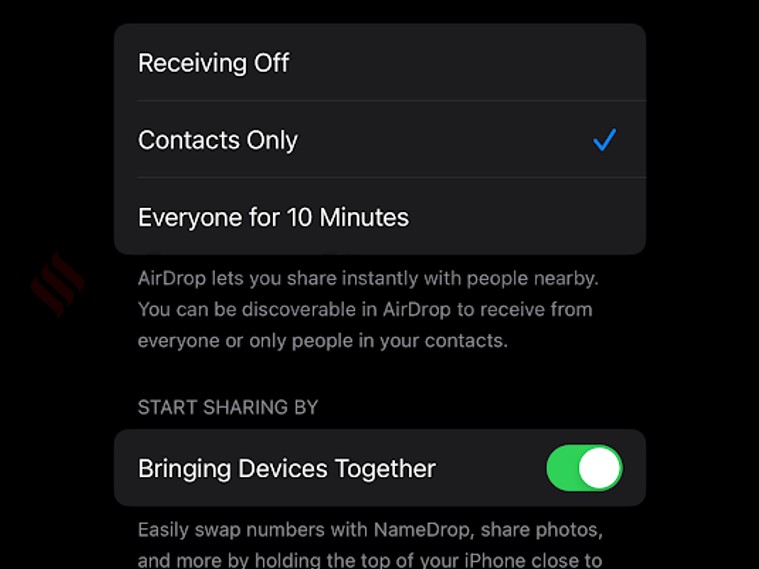 NameDrop settings are baked inside the AirDrop menu (Image credit: Vivek Umashankar/The Indian Express)
Go to Settings > General > AirDrop > and disable the Bringing Devices Together option. Do note that this not only disables NameDrop but also the feature that allows iPhone users to share photos, videos, and other content by holding an iPhone close to another iPhone.
However, given how intuitive the feature is, we suggest keeping it enabled. One can change the AirDrop visibility settings to Contacts only to enhance user privacy.