3 min read
© IE Online Media Services Pvt Ltd



 You can use one WhatsApp account on up to five devices (Express Photo)
WhatsApp caters to various user needs, from using multiple WhatsApp accounts on a single phone to employing a single account on multiple phones. If you’re someone who needs to access a single WhatsApp account on multiple devices, here’s a detailed guide on how to add up to four companion devices to your primary WhatsApp account.
WhatsApp supports up to four companion devices, allowing you to use one WhatsApp account on up to five devices simultaneously, including the primary device. On all five devices, you can access messages and calls in real time. However, if you’re using WhatsApp Web as a companion device, you won’t be able to make or receive calls.
To add a PC or Mac as a companion device over the browser (WhatsApp Web), you don’t need to download the WhatsApp app. You can achieve this by using just a web browser such as Safari, Chrome, or Edge.
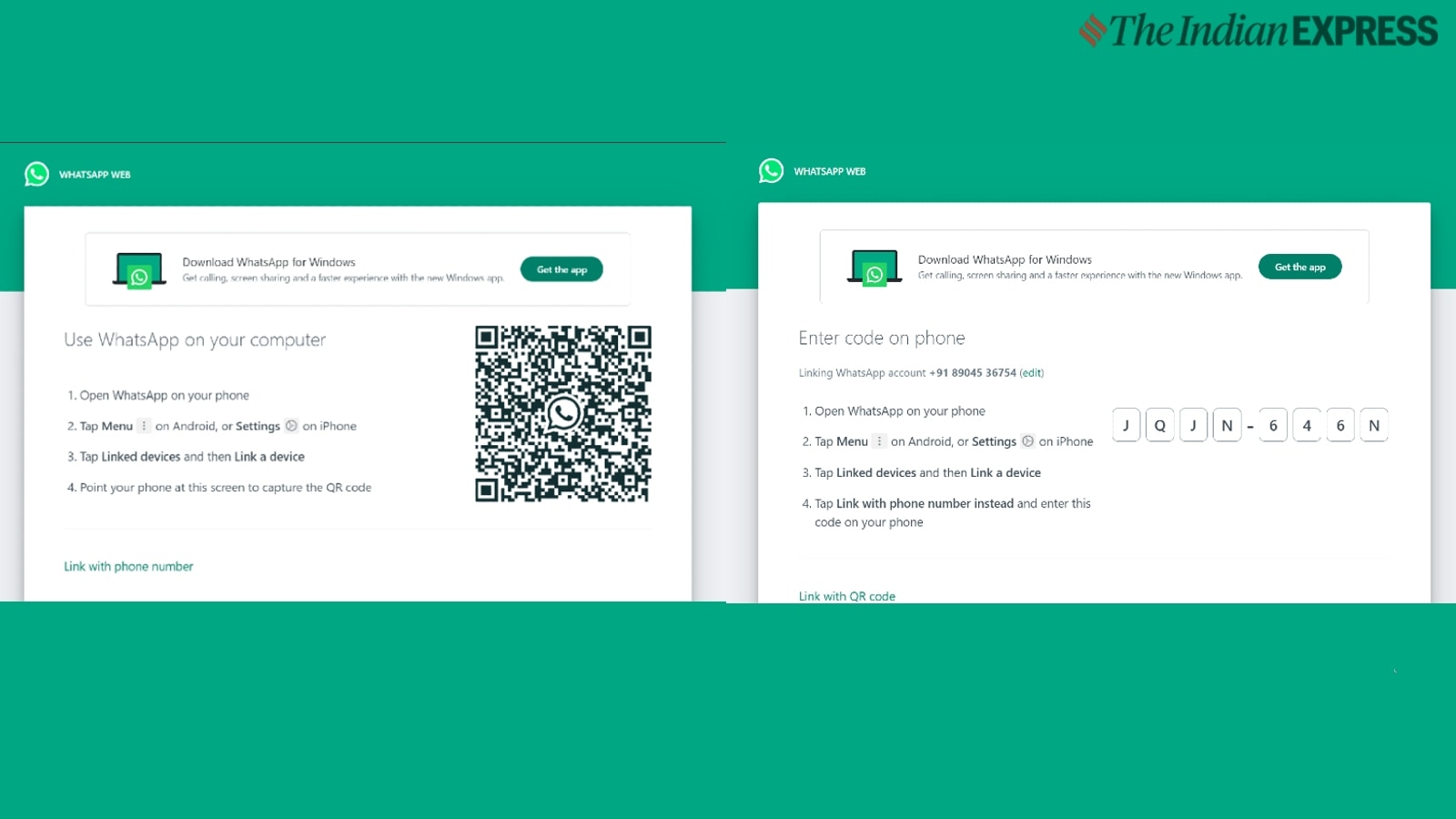 PC as a companion WhatsApp device (Express Photo)
Go to web.whatsapp.com, where you’ll see a QR code on your computer.
On your smartphone with the primary WhatsApp account, click on the hamburger menu in the top right corner.
Select “Linked Devices” and click on “Link a Device.”
 You can link up to four additional devices (Express Photo)
Next, scan the QR code on your PC using your smartphone.
You can now access your WhatsApp account on the web browser. Alternatively, you can also link using the phone number by entering an eight-digit unique code on your primary device.
Similarly, if you want to use the same WhatsApp account on a secondary Android smartphone or an iPhone:
 You can add both Android or iPhone as a companion device (Express Photo)
Download the app from the Play Store or App Store.
Select your language and accept the terms of service.
Click on the hamburger menu in the top right corner.
Select “Link as a Companion Device” and scan the QR code from your primary smartphone to add this as a companion device.
Note that these QR codes expire quickly, so always try to add a companion device when both smartphones are connected to high-speed internet.