


© IE Online Media Services Pvt Ltd
Tags:


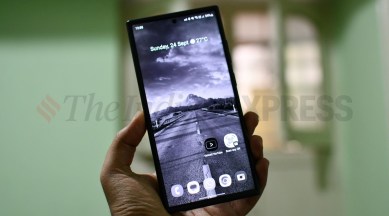
Greyscale/monochrome mode on modern smartphones has been gaining momentum in recent years. This feature not only reduces screen time but also assists people with vision impairments, such as colour blindness, by making device usage easier on their eyes. Additionally, when activated on a phone equipped with an OLED screen, greyscale mode can significantly lower power consumption and extend battery life.
If you are a Samsung smartphone user running OneUI 5/6, here is a quick guide on how to enable greyscale mode on your Galaxy device.

The monochrome mode settings for Samsung Galaxy smartphones running OneUI 6 can be found within the ‘Modes and Routes’ menu. You can enable this feature by activating the sleep mode on your Samsung Galaxy smartphone.
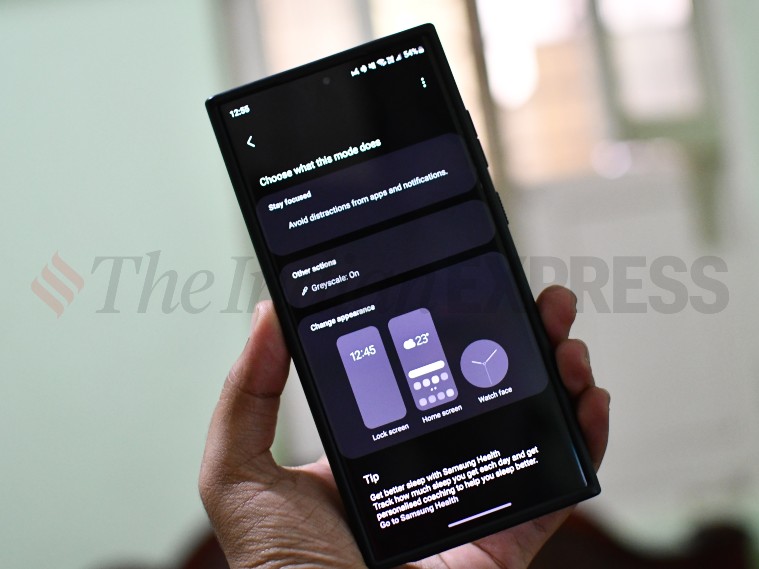
Go to Settings > Navigate to Modes and Routes > Turn on Sleep Mode to enable greyscale/monochrome mode.
By default, monochrome mode is manually disabled. Samsung also offers the option for users to set up a routine to automatically enable and disable monochrome mode at specific times. To quickly activate sleep mode and activate greyscale mode, you can also add a shortcut to the quick settings menu.
By default, enabling sleep mode also activates ‘Do Not Disturb’ mode. If you want to receive notifications while in monochrome mode on your Samsung smartphone, be sure to disable ‘Do Not Disturb.’ Additionally, if you have paired a Galaxy Watch with your smartphone, the same greyscale mode will also be activated on the smartwatch.
Another method to enable greyscale mode on a Samsung smartphone is by activating the ‘Color Correction’ tile from the quick settings menu.


