2 min read
© IE Online Media Services Pvt Ltd



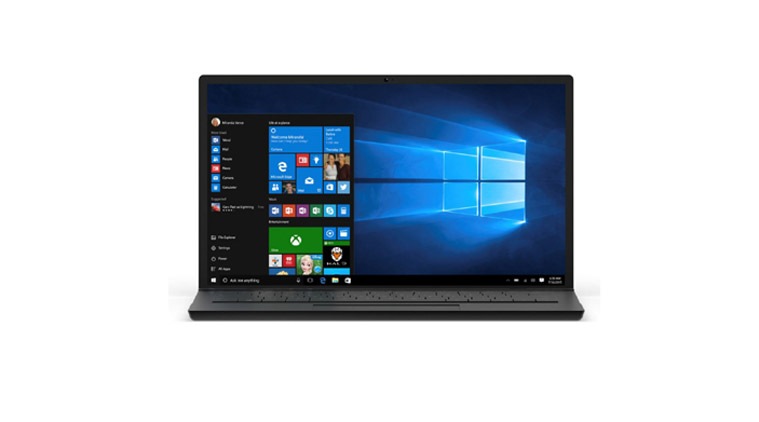 Windows 10 is now available for download to eligible computers
When you claim your free upgrade to Windows 10, you will find that most of your apps have defaulted to Microsoft services. Microsoft Edge will be your default browser while Groove Music will serve as your default music player. While this can be considered as a good move from Redmond to migrate most users to its service, this can also be argued as disrespect to user choices. Mozilla CEO Chris Beard criticized Microsoft for making Edge as the default browser. But there is still an easy workaround to change the default apps.
Here’s our help guide
Step 1: Open the Start Menu and click on Settings, which gives access to all the PC settings like date and time, network connection, user accounts, etc.
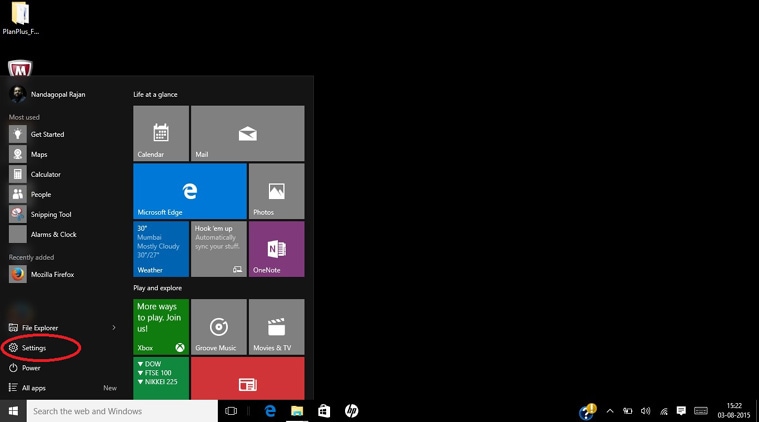 Windows 10 comes with a redesigned Start screen with quick access to Settings (Source: Nandagopal Rajan)
Step 2: Click on System Option to access the display settings, action center, storage etc.
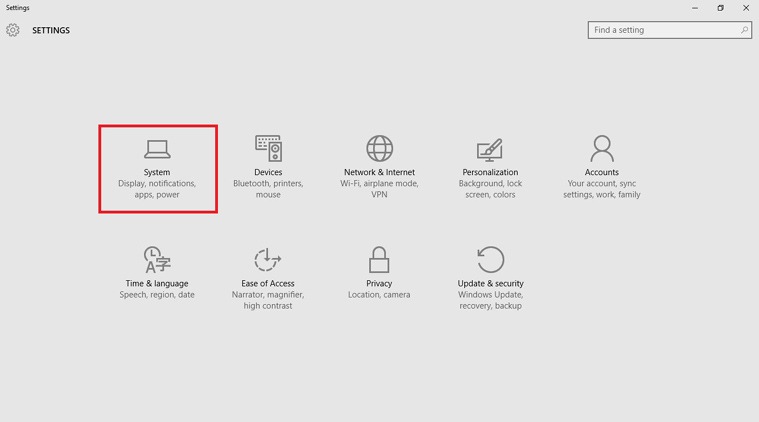 Windows 10 Settings option gives quick access to system settings like action center, security and software updates (Source: Nandagopal Rajan)
Step 3: Now click on Default apps to change the default apps for Web browser, music player, photo viewer as per your liking. Microsoft also gives you an option to look for similar apps in the Windows Store.
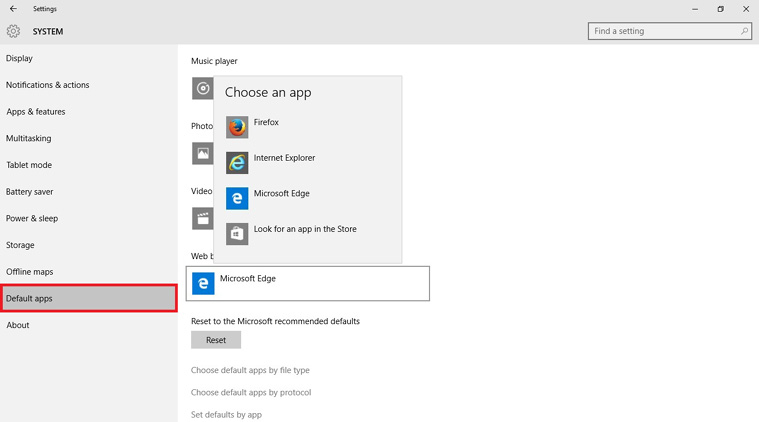 Default apps can be changed from System settings (Source: Nandagopal Rajan)
Also if you download Mozilla Firefox and try to set it as default browser, you will be led to the above settings page.