Premium
This is an archive article published on April 9, 2020

How to turn your old Android phone into a web camera with these simple steps

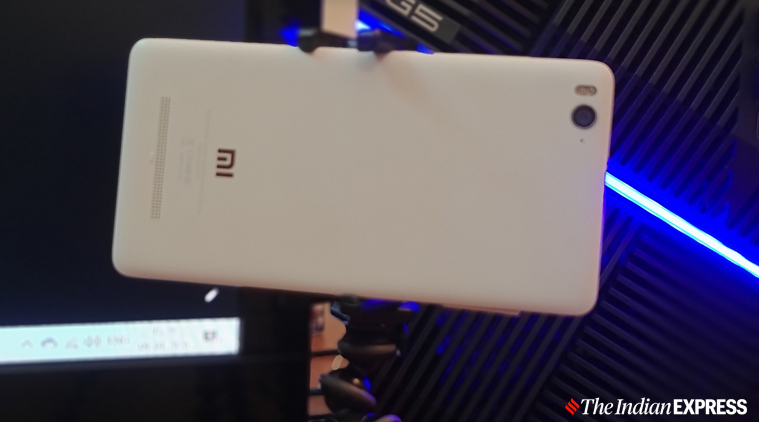
I took an old Xiaomi Mi 4i and turned into a web camera so that I can video chat with my colleagues or friends on Skype or Zoom.

Use your old Android smartphone as a web camera for PC. (Image credit: Anuj Bhatia/Indian Express)
If you’ve got a smartphone recently, you’re probably thinking what to do with the old device. In most cases, people either sell their old phone or keep it in the closet. How boring?

One of the options is to use your old phone as a web camera, as I did. I took an old Xiaomi Mi 4i and turned into a web camera so that I can video chat with my colleagues or friends on Skype or Zoom. There are plenty of free apps that can be used to turn your old phone into a workable web camera. It’s worth it, in case you don’t have an external web camera that can be hooked to the monitor.

An Indian rethinking of stethoscope suddenly finds relevance in Covid-19 challenges

Here’s how to use an old Android smartphone as a Wi-Fi-enabled web camera for your PC.

The basics

If you are planning to turn your old Android phone into a web camera for your PC, you need the following things.

*Any working Android phone that supports Google Play Store
* A mount for your smartphone or mini tripod.
*DroidCam Wireless Webcam app.

Download and install DroidCam Wireless Webcam app

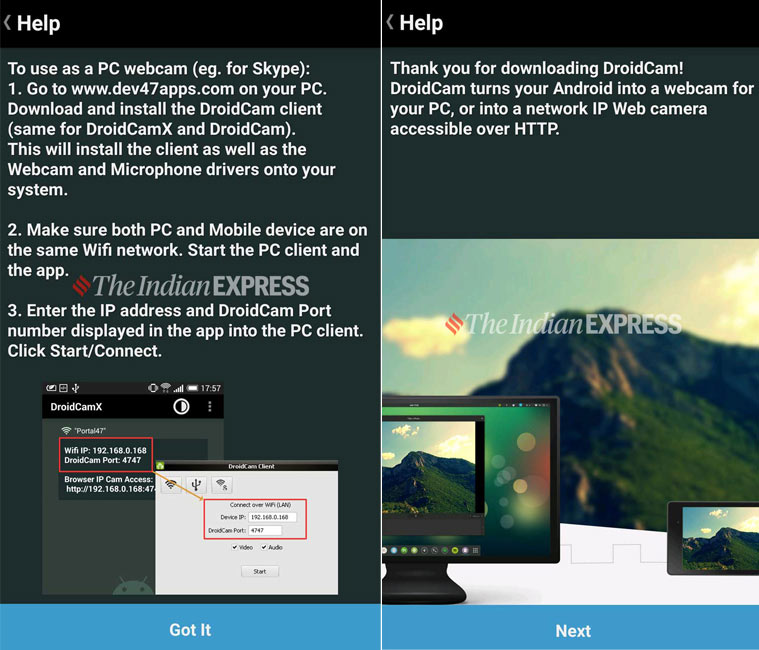
There are plenty of apps available in the Play Store that turn your old Android phone into a web camera. But I used the free version of DroidCam Wireless Webcam. You need to download this app from the Play Store and install it on your smartphone. Once you download the app on your phone, open any web browser on your PC and type DroidCam Windows Client. Open the web page, click on DroidCam Client v6.0 and download it. When the file is downloaded, install the DroidCam Client on your Windows PC.
I used the free version of DroidCam Wireless Webcam.

Link DroidCam Wireless Webcam Android app with the Windows DroidCam Client

After downloading DroidCam Wireless Webcam on your smartphone, you need to connect the app with the Windows DroidCam Client either by using a wireless network or via a USB connection.

Story continues below this ad

If you are new to the DroidCam Wireless Webcam app, you will be greeted with a quick guide on how to use it. Tap Next, and then tap Got it. Now, the app will ask you for permission to use your phone’s camera and microphones. Once you give permission, it shows your phone’s IP address, and the port used by the app.

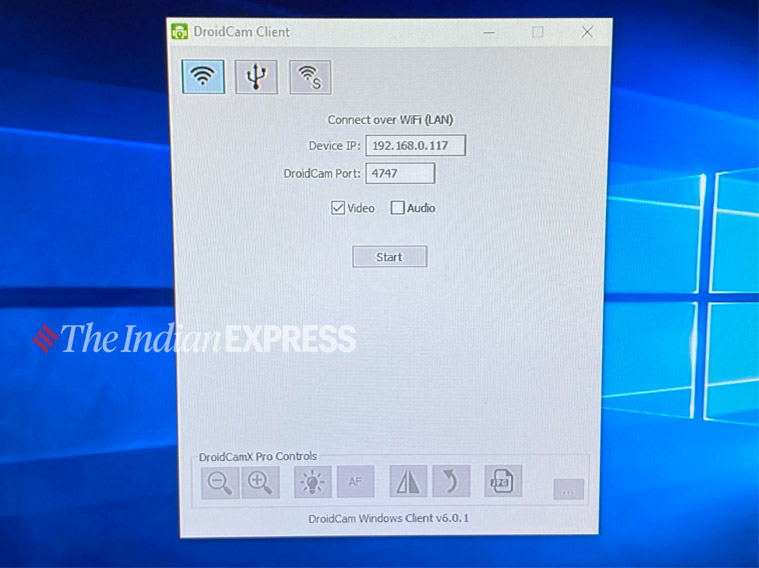
Now, go to your PC and open DroidCam Client. Enter the phone IP and the DroidCam Port displayed on your smartphone.

Connect the Android app with the Windows DroidCam Client on your PC. (Image credit: Anuj Bhatia/Indian Express)
Time to start video feed from your Android phone

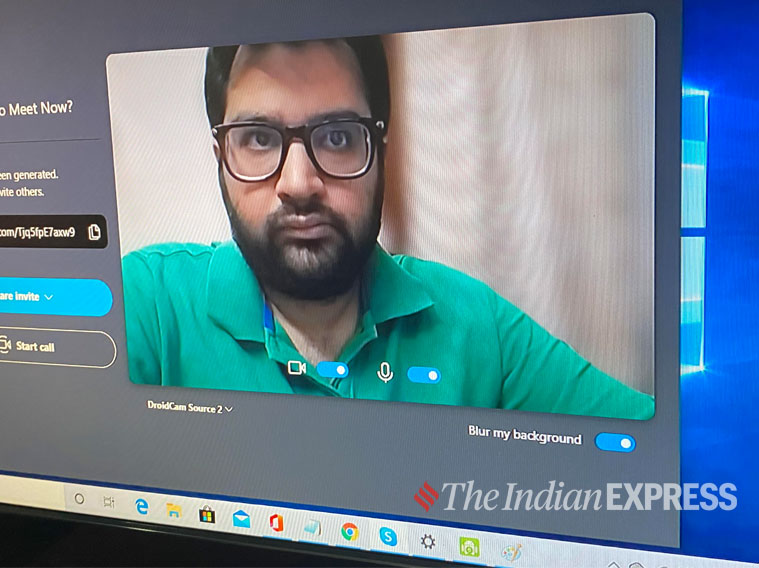
Once your phone and PC are on the same Wi-Fi network, tab the Start button from on Windows DroidCam Client to begin the video feed. Your always-on, internet-connected webcam is ready.

The good thing about the DroidCam Wireless Webcam app is that it lets you use your Android web camera on several video calling apps. I used the web camera with Skype, and it worked perfectly fine.

Story continues below this ad
I used the web camera with Skype, and it worked perfectly fine. (Image credit: Anuj Bhatia/Indian Express)

How to mount your smartphone as a web camera

Well, this can be a little tricky. You need some kind of stand, a tripod or tabletop mount to stabilise your phone. Thankfully, I had a Joby mini-tripod lying on my shelf. It can stand on uneven surfaces and a phone clamp that can hold and stabilise medium to large-sized phones.

This is how I converted my old Xiaomi Mi 4 smartphone into a web camera. It took me 10 minutes to set up everything. This method is useful if you don’t have any plan to invest in an external camera.

Anuj Bhatia is a seasoned personal technology writer at indianexpress.com with a career spanning over a decade. Active in the domain since 2011, he has established himself as a distinct voice in tech journalism, specializing in long-form narratives that bridge the gap between complex innovation and consumer lifestyle. Experience & Career: Anuj has been a key contributor to The Indian Express since late 2016. Prior to his current tenure, he served as a Senior Tech Writer at My Mobile magazine and held a role as a reviewer and tech writer at Gizbot. His professional trajectory reflects a rigorous commitment to technology reporting, backed by a postgraduate degree from Banaras Hindu University. Expertise & Focus Areas: Anuj’s reporting covers the spectrum of personal technology, characterized by a unique blend of modern analysis and historical context. His key focus areas include: Core Technology: Comprehensive coverage of smartphones, personal computers, apps, and lifestyle tech. Deep-Dive Narratives: Specializes in composing longer-form feature articles and explainers that explore the intersection of history, technology, and popular culture. Global & Local Scope: Reports extensively on major international product launches from industry titans like Apple and Google, while simultaneously covering the ecosystem of indie and home-grown tech startups. Niche Interests: A dedicated focus on vintage technology and retro gaming, offering readers a nostalgic yet analytical perspective on the evolution of tech. Authoritativeness & Trust Anuj is a trusted voice in the industry, recognized for his ability to de-jargonize trending topics and provide context to rapid technological advancements. His authority is reinforced by his on-ground presence at major international tech conferences and his nuanced approach to product reviews. By balancing coverage of the world's most valuable tech brands with emerging startups, he offers a holistic and objective view of the global technology landscape. Find all stories by Anuj Bhatia here. You can find Anuj on Linkedin. ... Read More


Latest Comment
Post Comment
Read Comments
Advertisement
Loading Taboola...
Advertisement