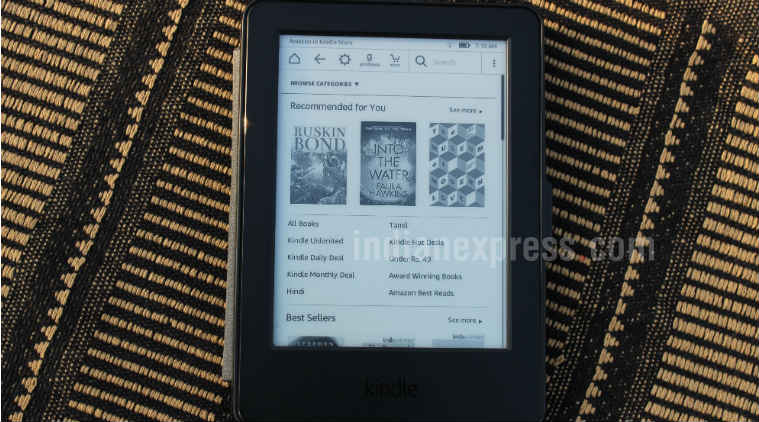
Just got a new Amazon Kindle? Learn how to get most out of a Kindle with these tips, tricks, and hidden features.
Being a part of the 24/7 news cycle, it’s constantly getting difficult to take some time off for reading books. I love reading books – and honestly I don’t really mind whether it is an e-book or a physical book. My love affair with Kindle started quite early, although I got the e-reader only in 2016. I use my Kindle usually when I commute to office in the Metro. The Kindle definitely has an advantage — that of being able to carry an entire library wherever you go. While not many realise this, e-books are often cheaper to buy compared to physical books. Then there is a convenience factor of owing the Kindle. As long as you have a Wi-Fi connection, you can download whatever book you want to read.
You’ve Read Your Free Stories For Now
Sign up and keep reading more stories that matter to you.
Even if you have been using a Kindle since it was launched, chances are good that you don’t know about everything the e-reader has to offer. Here’s five ways to get the most out of your Amazon Kindle.
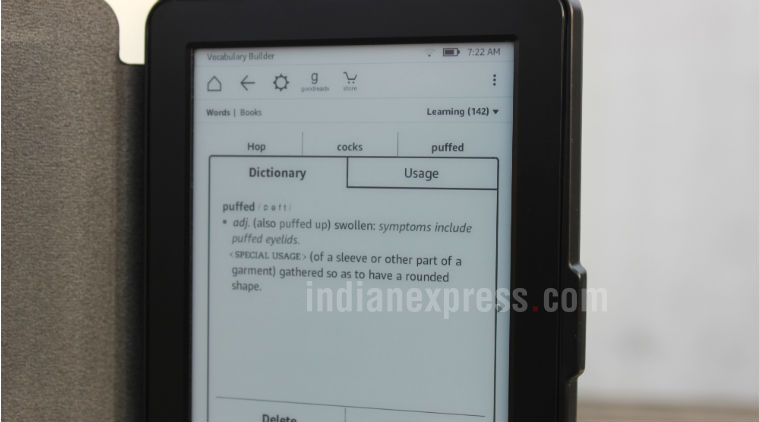
Vocabulary Builder
Vocabulary Builder also lets you make a Flashcard, which can be used to memorise words later.
Vocabulary Builder is a useful feature to increase your ability to remember words. You just need to tap the front button on the home screen where you will find the Vocabulary Builder feature. It essentially lists out all the words you have looked up in the dictionary. Tap on any word to see its meaning, memorise it again and delete it, or else mark them as mastered. Vocabulary Builder also lets you make a Flashcard, which can be used to memorise words later.
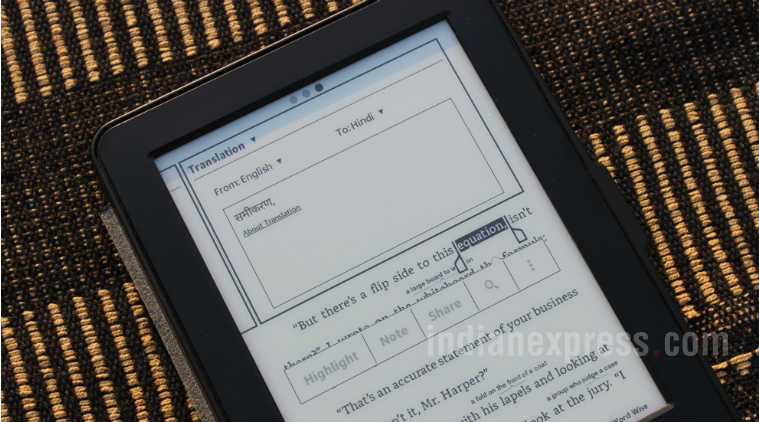
Instant Translations
If you want to know the meaning of the particular word in Hindi, you can find it through Instant Translations feature.
Amazon Kindle allows you to translate the word or phrase into a whole range of different languages such as Hindi, French, German, Chinese, and Japanese, among others. For instance, if you want to know the meaning of the particular word in Hindi, you can find it through Instant Translations feature. You can also translate the word from other languages to English as well.
Add Notes and Highlight texts
To highlight, simply tap and hold the text and drag till the last point without removing it from the screen.
Amazon Kindle can be a must-have tool for students and teacher, thanks to its ability to highlight text and take notes in any book. It’s a simple feature. To highlight, simply tap and hold the text and drag till the last point without removing it from the screen. Plus, you can always share your Highlights and Notes with others through email, Facebook or Twitter.
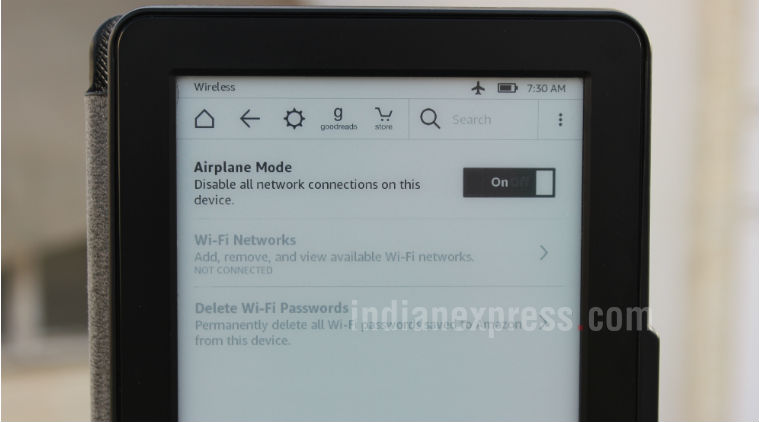
Maximise Battery life
Turn off the Wi-Fi by switching it to Airplane mode when you don’t need it.
My Amazon Kindle lasts for a few weeks and I’m content with the battery life. But it would be great if I get a couple of extra weeks more on a single charge. The trick is the same as you often apply on the smartphone to maximise the battery life. Turn off the Wi-Fi by switching it to Airplane mode when you don’t need it. To enable it, just go to “Settings” and turn on “Airplane Mode”.
Customise reading options
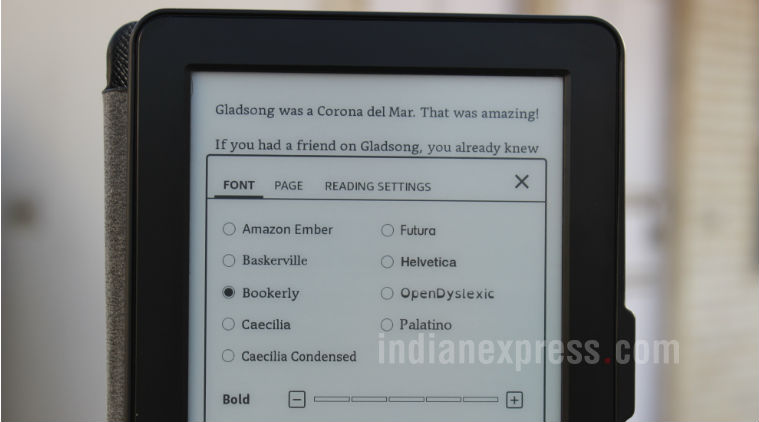
Aside of changing your font size, you can also change the font style as well.
On the Amazon Kindle e-reader, you can actually change the font size and font style. Just open a specific page of the book and tap the top of your screen. Select the “Aa” option, which lets you change your font size and the font style. Make your text larger or smaller depending upon your preference. Essentially, it makes a book easier to read. Aside of changing your font size, you can also change the font style as well. A total of nine font styles are available including Bookerly, Publisher Font, Helvetica and more. Once you have got your font size and style, you can enjoy a lazy Sunday afternoon reading a book in peace.
Anuj Bhatia is a seasoned personal technology writer at indianexpress.com with a career spanning over a decade. Active in the domain since 2011, he has established himself as a distinct voice in tech journalism, specializing in long-form narratives that bridge the gap between complex innovation and consumer lifestyle.
Experience & Career: Anuj has been a key contributor to The Indian Express since late 2016. Prior to his current tenure, he served as a Senior Tech Writer at My Mobile magazine and held a role as a reviewer and tech writer at Gizbot. His professional trajectory reflects a rigorous commitment to technology reporting, backed by a postgraduate degree from Banaras Hindu University.
Expertise & Focus Areas: Anuj’s reporting covers the spectrum of personal technology, characterized by a unique blend of modern analysis and historical context. His key focus areas include:
Core Technology: Comprehensive coverage of smartphones, personal computers, apps, and lifestyle tech.
Deep-Dive Narratives: Specializes in composing longer-form feature articles and explainers that explore the intersection of history, technology, and popular culture.
Global & Local Scope: Reports extensively on major international product launches from industry titans like Apple and Google, while simultaneously covering the ecosystem of indie and home-grown tech startups.
Niche Interests: A dedicated focus on vintage technology and retro gaming, offering readers a nostalgic yet analytical perspective on the evolution of tech.
Authoritativeness & Trust
Anuj is a trusted voice in the industry, recognized for his ability to de-jargonize trending topics and provide context to rapid technological advancements. His authority is reinforced by his on-ground presence at major international tech conferences and his nuanced approach to product reviews. By balancing coverage of the world's most valuable tech brands with emerging startups, he offers a holistic and objective view of the global technology landscape.
Find all stories by Anuj Bhatia here.
You can find Anuj on Linkedin. ... Read More