Things to do immediately after setting up the iPhone 12. (Image credit: Anuj Bhatia/Indian Express)
The iPhone 12 is here, and it features a new design with flat edges, a higher screen resolution and a faster processing chip for Rs 79,900. Now that you have already unboxed the iPhone 12, the next logical step would be exploring some of its features. There are a few things you should immediately try out before you dive into the iPhone 12. Here are the five first things to try.
Change default email and browser apps
With iOS 14, Apple finally allowed users to let them choose their own default email and web browser apps like Chrome and Outlook instead of opening the default Mail and Safari apps. At the moment, you can replace the default email client with Gmail and Microsoft Outlook. Similarly, Apple is letting you replace Safari with Chrome, Microsoft Edge, DuckDuckGo and Firefox.
You’ve Read Your Free Stories For Now
Sign up and keep reading more stories that matter to you.
Here’s how you can change default iPhone email and browser apps
*Open Settings on your iPhone 12
*Scroll down a bit and find the third-party apps you would like to set as the default.
*Choose Default Browser App or Default Email App
*Tap the third-party app you would like to use.
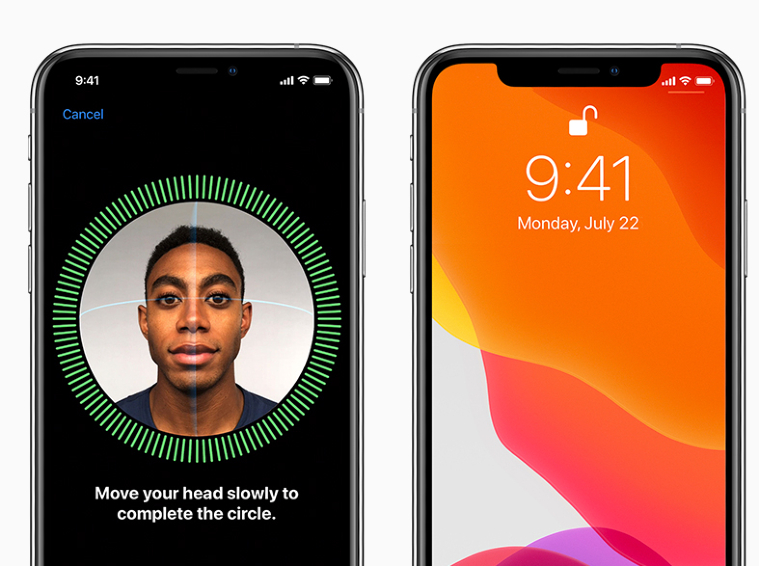
Face ID lets you unlock your iPhone just by looking at it.
Set up Face ID
If you have upgraded to the iPhone 12 from the iPhone 5s/6, it is much likely you haven’t heard about Face ID before. Face ID is Apple’s biometric facial identity scanner on its new devices, including iPhone 12 and iPad Pro. With Face ID, you can unlock your iPhone just by looking at the device.
You can set Face ID either during the initial setup of your iPhone 12 or after setup has finished. To set Face ID after setting up the device, open Settings > Face ID & Passcode. Enter your passcode. Tap on the link to “Set Up Face ID.” It’s easy to set up and use Face ID on the iPhone 12.
Story continues below this ad
Your iPhone 12 has a secret back button you didn’t know existed.
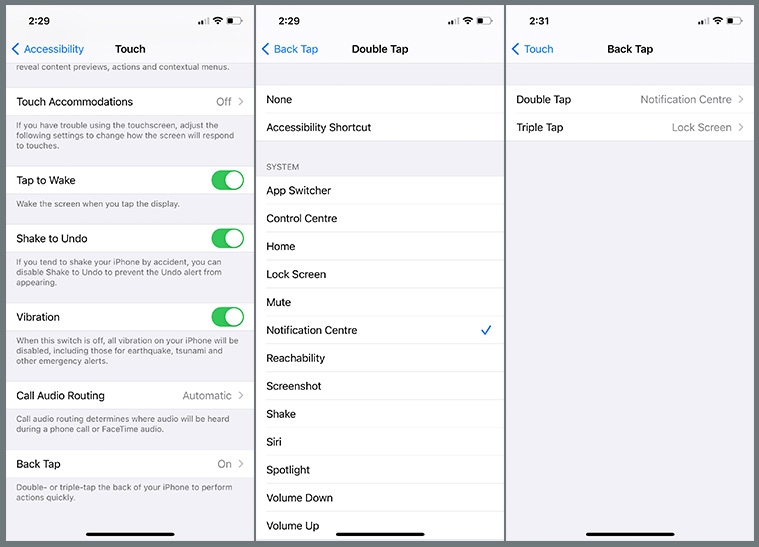
How to use secret ‘Back Tap’ option on iPhone 12
Do you know there’s a secret button on your iPhone? Well, that ‘back tap’ feature turns rear of iPhone into a button. So basically, a ‘back tap’ feature allows you to double or triple tap the back of your iPhone to perform certain tasks. For example, I set the Notification Center to double-tap. The new feature is hidden, but it’s easy to set up.
To set the Back Tap feature, all you need to open the Settings menu on your iPhone and scroll down to Accessibility. From there, tap Touch and scroll down until you see Back Tap. You can turn on Double Tap or Triple Tap.
You can use Night mode to capture selfies on the iPhone 12. (Image credit: Anuj Bhatia/Indian Express)
Take Night Mode selfies on iPhone 12
With the iPhone 12, Apple is bringing Night Mode feature to all lenses, including the front-facing camera. When you use the new Night Mode selfie option, the iPhone 12 detects the surroundings and automatically brighten your selfie portraits. However, there is an option to manually turn off the night mode option.
Here’s how to take a selfie using Night Mode on the iPhone 12.
Story continues below this ad
*Launch the camera app on the iPhone 12 and tap the front-facing camera button
*Night mode will automatically turn on, depending upon the surroundings. Look for the circular night mode icon at the top left-hand corner by the flash icon. If it’s on, it will be yellow.
*Tap the shutter button and hold still until the photo is finished.
Connecting your AirPods to the iPhone 12 is seamless. (Image credit: Nandagopal Rajan/Indian Express)
Pair your AirPods to your iPhone
AirPods work really well the iPhone and if you own Apple’s popular earbuds, it’s easy to pair them with an iPhone. The pairing process takes a few seconds. Open the charging case, wait for the prompt on your iPhone, tap Connect and you are done connecting the AirPods with your phone.
Anuj Bhatia is a seasoned personal technology writer at indianexpress.com with a career spanning over a decade. Active in the domain since 2011, he has established himself as a distinct voice in tech journalism, specializing in long-form narratives that bridge the gap between complex innovation and consumer lifestyle.
Experience & Career: Anuj has been a key contributor to The Indian Express since late 2016. Prior to his current tenure, he served as a Senior Tech Writer at My Mobile magazine and held a role as a reviewer and tech writer at Gizbot. His professional trajectory reflects a rigorous commitment to technology reporting, backed by a postgraduate degree from Banaras Hindu University.
Expertise & Focus Areas: Anuj’s reporting covers the spectrum of personal technology, characterized by a unique blend of modern analysis and historical context. His key focus areas include:
Core Technology: Comprehensive coverage of smartphones, personal computers, apps, and lifestyle tech.
Deep-Dive Narratives: Specializes in composing longer-form feature articles and explainers that explore the intersection of history, technology, and popular culture.
Global & Local Scope: Reports extensively on major international product launches from industry titans like Apple and Google, while simultaneously covering the ecosystem of indie and home-grown tech startups.
Niche Interests: A dedicated focus on vintage technology and retro gaming, offering readers a nostalgic yet analytical perspective on the evolution of tech.
Authoritativeness & Trust
Anuj is a trusted voice in the industry, recognized for his ability to de-jargonize trending topics and provide context to rapid technological advancements. His authority is reinforced by his on-ground presence at major international tech conferences and his nuanced approach to product reviews. By balancing coverage of the world's most valuable tech brands with emerging startups, he offers a holistic and objective view of the global technology landscape.
Find all stories by Anuj Bhatia here.
You can find Anuj on Linkedin. ... Read More