If you own an iPhone, you should definitely give these five lesser-known features a try. (Image credit: Anuj Bhatia/Indian Express)
The iPhone continues to be the most popular smartphone in the world. Due to its ease of use and simplicity, the iPhone has a greater acceptance than rival Android-powered smartphones. If you own an iPhone 12 or iPhone 13, you might already know about how it improved on past generations. In addition to the features that are heavily marketed by Apple, the iPhone offers many lesser-known features that barely get attention. We introduce you to five fantastic features hidden in the iPhone. You just have to know where to find them.
Silence Spam calls
Nobody likes spam calls. Whether it’s a call from a telemarketer or just a wrong number, having your phone ring at odd times is annoying. Luckily, being an iPhone user, you have the option to silence unknown callers. In iOS 15, there is a feature that lets you silence unknown callers so that your iPhone won’t ring. Essentially, when you turn on the Silence Unknown Caller feature, any calls from unknown numbers will automatically go to voicemail. That being said, the calls will still show up in your recent calls tap in the Phone app, so that you still know who called you and then choose to call back. To be clear, when the feature is enabled, you will get incoming calls from people in your contacts.
*Tap ‘Phone‘ and then turn on ‘Silence Unknown Callers.’ The switch will turn green when the feature is enabled.
Tired of receiving calls from unknown numbers? Try this feature.
Easily find specific words on Safari
One of the lesser-known but interesting features of the iPhone is how you can easily search for a specific word on Safari using the keyword search option. If you are reading an article on ‘Chinese fried rice recipe’ on Safari and need to locate a specific word or phrase, all you need to use keyword search instead of scanning the entire article. In the search bar, type the text you want to find, scroll down and select “On this page.”
Easily find specific words on Safari using keyword search.
Keyboard shortcuts on iPhone
If you are tired of typing long words or names all over again, you are not alone. In fact, it’s the most annoying thing to type long sentences, especially when you are on the go or in the middle of a meeting. Thankfully, you can save your time by setting up keyword shortcuts for all the text you type regularly.
Here’s how to create keyboard shortcuts on iPhone
* Launch the Settings app.
* Tap General.
* Tap on Keyboard.
* Tap on Text Replacement.
* Tap on the + in the top right corner.
* In the Phrase field, type in the entire phrase you’d like to create a shortcut for.
* In the Shortcut field, type in the snippet you want to be replaced by the phrase.
* Tap Save at the top right.
Story continues below this ad
Create your own keyboard shortcuts on the iPhone.
Tap with three fingers to undo or redo
At times, it happens when you accidentally delete the entire sentence by mistake. Instead of creating panic, you can also tap with three fingers to “undo” or “redo” when in a text field. If you don’t want to use this feature, you can even shake your iPhone to undo your typing. Shake a second time to redo the action. If the feature gets activated by accident, you can deactivate it from the Settings app by selecting Accessibility, Touch, Shake to Undo and turning off the toggle.
A lot of times, when you spot an interesting article on a website, you take a screenshot of the article and share it with your friends. But there is a better way to share news articles, a listicle on a car or a recipe. On iPhone, you can turn any webpage into a PDF.
Open the website on your iPhone and take a screenshot. If you have newer iPhones with a notch, press and hold the “Side” and “Volume Up” buttons together until you see the screenshot animation. If you’re using an iPhone or iPad with a Home button, press it, along with the “Power/Sleep” button to take a screenshot. You see a little screenshot preview in the bottom-left corner—tap it. In the screenshot editor— Tap “Full Page.” Now, the whole page appears. You can either save the PDF to the Files app or export it to any app of your choice.
Anuj Bhatia is a seasoned personal technology writer at indianexpress.com with a career spanning over a decade. Active in the domain since 2011, he has established himself as a distinct voice in tech journalism, specializing in long-form narratives that bridge the gap between complex innovation and consumer lifestyle.
Experience & Career: Anuj has been a key contributor to The Indian Express since late 2016. Prior to his current tenure, he served as a Senior Tech Writer at My Mobile magazine and held a role as a reviewer and tech writer at Gizbot. His professional trajectory reflects a rigorous commitment to technology reporting, backed by a postgraduate degree from Banaras Hindu University.
Expertise & Focus Areas: Anuj’s reporting covers the spectrum of personal technology, characterized by a unique blend of modern analysis and historical context. His key focus areas include:
Core Technology: Comprehensive coverage of smartphones, personal computers, apps, and lifestyle tech.
Deep-Dive Narratives: Specializes in composing longer-form feature articles and explainers that explore the intersection of history, technology, and popular culture.
Global & Local Scope: Reports extensively on major international product launches from industry titans like Apple and Google, while simultaneously covering the ecosystem of indie and home-grown tech startups.
Niche Interests: A dedicated focus on vintage technology and retro gaming, offering readers a nostalgic yet analytical perspective on the evolution of tech.
Authoritativeness & Trust
Anuj is a trusted voice in the industry, recognized for his ability to de-jargonize trending topics and provide context to rapid technological advancements. His authority is reinforced by his on-ground presence at major international tech conferences and his nuanced approach to product reviews. By balancing coverage of the world's most valuable tech brands with emerging startups, he offers a holistic and objective view of the global technology landscape.
Find all stories by Anuj Bhatia here.
You can find Anuj on Linkedin. ... Read More


 5 min read




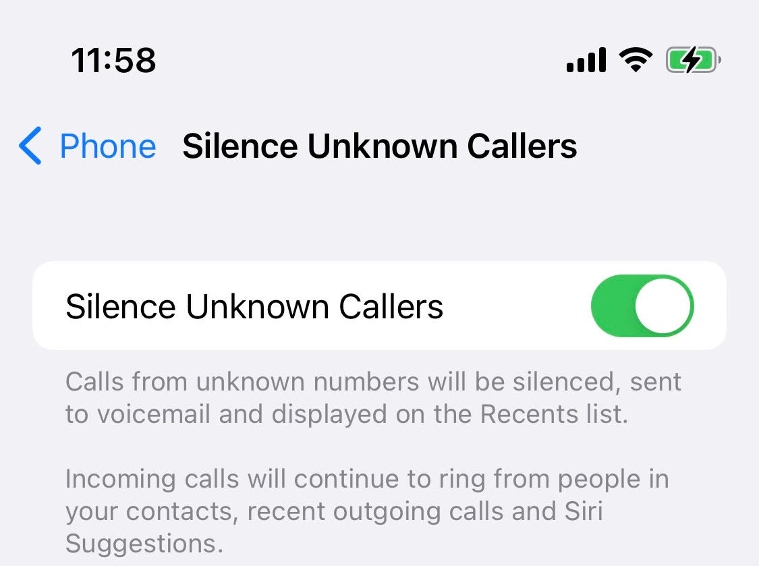 Tired of receiving calls from unknown numbers? Try this feature.
 Easily find specific words on Safari using keyword search.
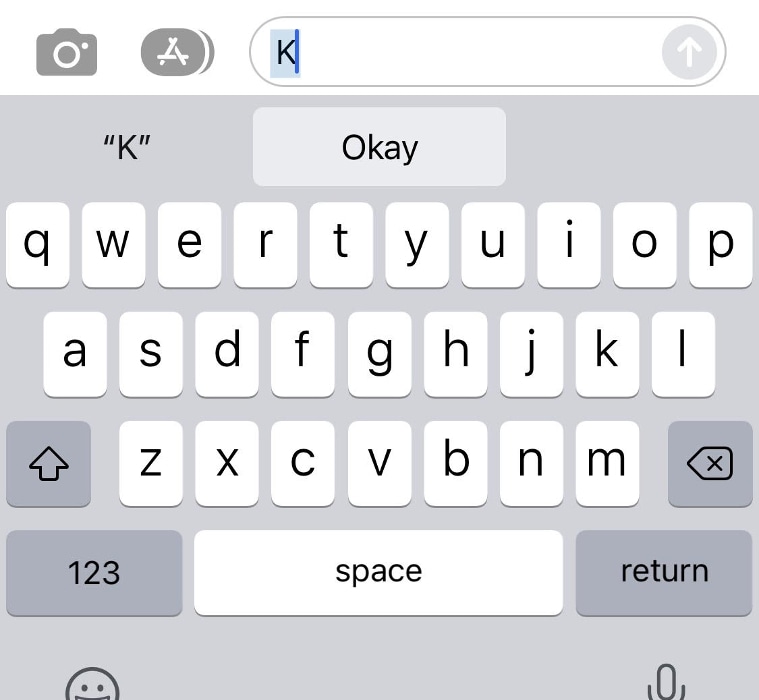 Create your own keyboard shortcuts on the iPhone.