This is an archive article published on February 22, 2022
I used a Bluetooth mouse with the iPad mini 6, and here’s how it changed my workflow
The added mouse support is not replacing the touch-first input method on the iPad but adds an extra layer of input method which doesn’t feel half-baked or forced.
New Delhi | Updated: February 26, 2022 11:05 AM IST
6 min read
Whatsapp
twitter
Facebook
Reddit
I recently started using the Asus MD 100 wireless Bluetooth mouse with my iPad mini 6, and the experience has been shockingly smooth. (Image credit: Anuj Bhatia/Indian Express)
I share an emotional bond with my iPad. From spending hours at the airport and meeting a deadline before the big product launch to writing a lengthy piece while sipping a hot coffee and braving freezing cold at massive halls of the Las Vegas Convention Center, my love for the iPad is beyond the normal bond between human and machine.
Some of you may wonder how the iPad, despite not being a Mac, fits into my workflow. As someone who has been using an iPad like a traditional computer for years, I can tell you the role of accessories in transforming Apple’s tablet into a dream work machine. I recently started using the Asus MD 100 wireless Bluetooth mouse (available for Rs 2199*) with my iPad mini 6, and the experience has been shockingly smooth.
I will tell you my experience of using a wireless mouse with the iPad — from setting up to comfort level. But most importantly, you will get a peek into how I use the iPad in my daily workflow.
My love for accessories for the iPad continues to grow. (Image credit: Anuj Bhatia/Indian Express)
The setup
You can use any wireless Bluetooth mouse with an iPad running iPadOS 13.4 or later. I used the Asus MD 100, and pairing this wireless Bluetooth mouse with the iPad was pretty straightforward. All you have to do is go to the Settings app on the iPad and tap Bluetooth. Once you have switched the mouse to Bluetooth mode (the pairing button is built next to the DPI option on the backside of the mouse), hold the pairing button for five seconds, and the LED will start flashing. Look for the mouse in the list of devices. When you see it, tap the name of the mouse. When your mouse is connected to your iPad, a round cursor appears on the screen.
To be clear, the Asus MD 100 can be used with multiple devices, including Windows PCs, macOS, and Chromebooks. USB dongle compatibility is also available- but I prefer to use the wireless Bluetooth option any day.
The iPad mini 6, when paired with a keyboard and mouse, transforms into a desktop computer. (Image credit: Anuj Bhatia/Indian Expres)
Appearance, comfort, and user experience
The MD 100 is a flat mouse, but still feels comfortable in the hand. Weighing just 56 grams, the mouse comes with an outer shell that gets an AntiBacterial Guard treatment. The unit I got for review comes in a soft pink colour, but the box also includes a green coloured shell. The scroll wheel is great. It’s a smooth rubber that felt nice under my fingertip. I could get through apps and web pages quickly. The pair of mouse buttons are silent and relatively easy to click. Remove the top cover, and you will find the battery compartment and the USB dongle.
And its single AA battery should last for over a year, according to Asus. The mouse is contoured for both right-handed and left-handed mouse users and should work on a variety of surfaces, primarily desks, hard and soft mousepads, wood, etc. I wouldn’t mind using it as my primary mouse, but I must point out that the MD 100 is better suited for those with small hands. Not to mention, the mouse comes with a fabric strap which not only makes it easy to carry but also helps in absorbing sweat from your hands.
Story continues below this ad
Being a writer, the iPad gives me the freedom to work from anywhere. (Image credit: Anuj Bhatia/Indian Express)
The experience
The mouse functionality has been natively baked into the iPadOS for quite some time, but not many people use it. The idea of agreeing to review the Asus MD100 in the first place was to introduce my readers to my work iPad setup, which includes the iPad Air or iPad mini 6, Logitech K480/Keys to Go, and Asus MD100 wireless Bluetooth mouse. Don’t ask how much I like to invest in accessories for the iPad. I like the freedom to work anywhere – and the iPad gives me that space.
Anway, mouse support in iPadOS behaves a little differently. The cursor is a large circular pointer rather than the arrow pointer; right and left clicks work also fundamentally differently on iPadOS than standard desktop operating systems. I agree that for navigating certain things on the iPad, touch works the best. But when moving around, especially scrolling through a lengthy feature story on indianexpress.com, the mouse works exactly as it should work. The whole experience of using the Asus MD 100 with the iPad mini 6 is natural. Drag up with the pointer from the bottom of the home screen to the main screen or bring up the App Switcher. With the mouse, I can directly move apps from the dock into Slide Over or Split View. I think a lot of iPad users are going to find the mouse support functional, mimicking a lot more like a traditional computer but in Apple’s style.
The Asus Marshmallow MD100 wireless Bluetooth mouse is simple looking and easy to set up. (Image credit: Anuj Bhatia/Indian Express)
Should you buy the Asus MD100?
I think the question that really needs to be asked is whether or not you should invest in a wireless Bluetooth mouse. My experience of using a wireless mouse with the iPad mini 6 has been quite fun. I get it the iPad is primarily made for touch, but over the years Apple’s tablet (regardless of which model you choose) has become closer to a traditional computer. With a mouse, I could scroll through pages, drag apps from the dock into Slide Over, resize Split View apps, and even drag photos to the Notes app. The added mouse support is not replacing the touch-first input method on the iPad but adds an extra layer of input method which doesn’t feel half-baked or forced.
*Asus Marshmallow MD100 wireless mouse will hit both online and offline stores in May this year.
Anuj Bhatia is a seasoned personal technology writer at indianexpress.com with a career spanning over a decade. Active in the domain since 2011, he has established himself as a distinct voice in tech journalism, specializing in long-form narratives that bridge the gap between complex innovation and consumer lifestyle.
Experience & Career: Anuj has been a key contributor to The Indian Express since late 2016. Prior to his current tenure, he served as a Senior Tech Writer at My Mobile magazine and held a role as a reviewer and tech writer at Gizbot. His professional trajectory reflects a rigorous commitment to technology reporting, backed by a postgraduate degree from Banaras Hindu University.
Expertise & Focus Areas: Anuj’s reporting covers the spectrum of personal technology, characterized by a unique blend of modern analysis and historical context. His key focus areas include:
Core Technology: Comprehensive coverage of smartphones, personal computers, apps, and lifestyle tech.
Deep-Dive Narratives: Specializes in composing longer-form feature articles and explainers that explore the intersection of history, technology, and popular culture.
Global & Local Scope: Reports extensively on major international product launches from industry titans like Apple and Google, while simultaneously covering the ecosystem of indie and home-grown tech startups.
Niche Interests: A dedicated focus on vintage technology and retro gaming, offering readers a nostalgic yet analytical perspective on the evolution of tech.
Authoritativeness & Trust
Anuj is a trusted voice in the industry, recognized for his ability to de-jargonize trending topics and provide context to rapid technological advancements. His authority is reinforced by his on-ground presence at major international tech conferences and his nuanced approach to product reviews. By balancing coverage of the world's most valuable tech brands with emerging startups, he offers a holistic and objective view of the global technology landscape.
Find all stories by Anuj Bhatia here.
You can find Anuj on Linkedin. ... Read More


 6 min read


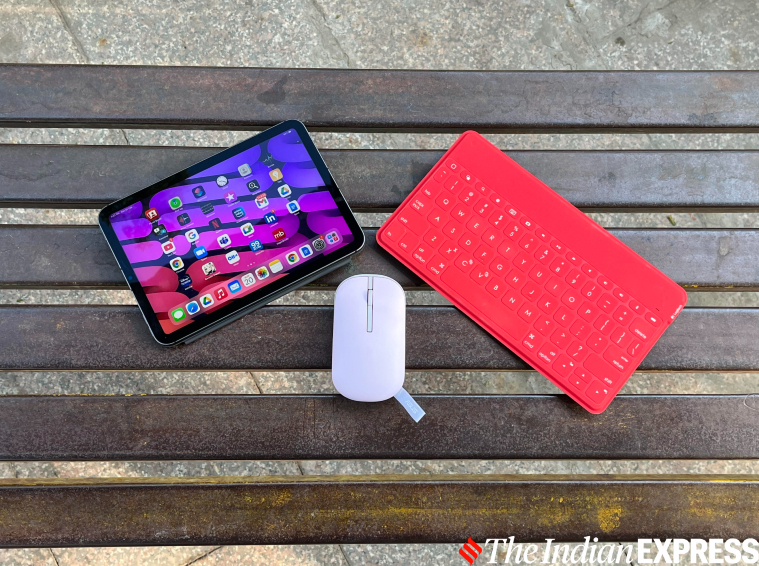 My love for accessories for the iPad continues to grow. (Image credit: Anuj Bhatia/Indian Express)
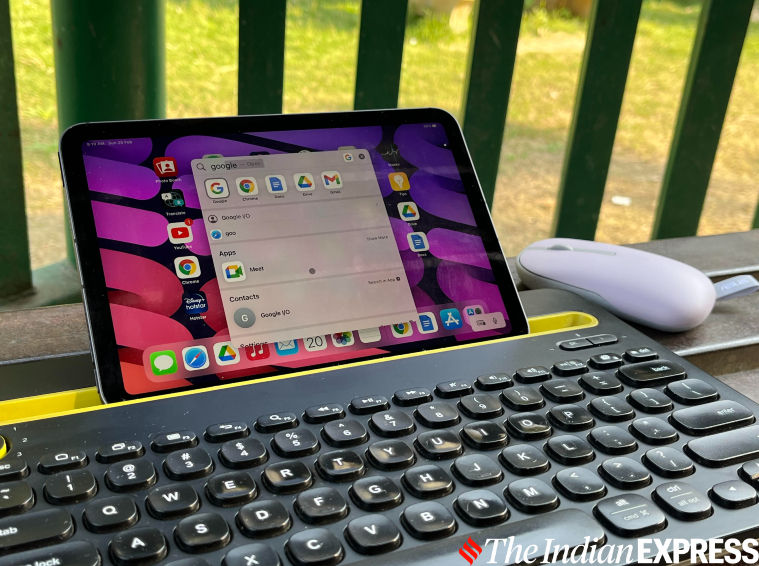 The iPad mini 6, when paired with a keyboard and mouse, transforms into a desktop computer. (Image credit: Anuj Bhatia/Indian Expres)
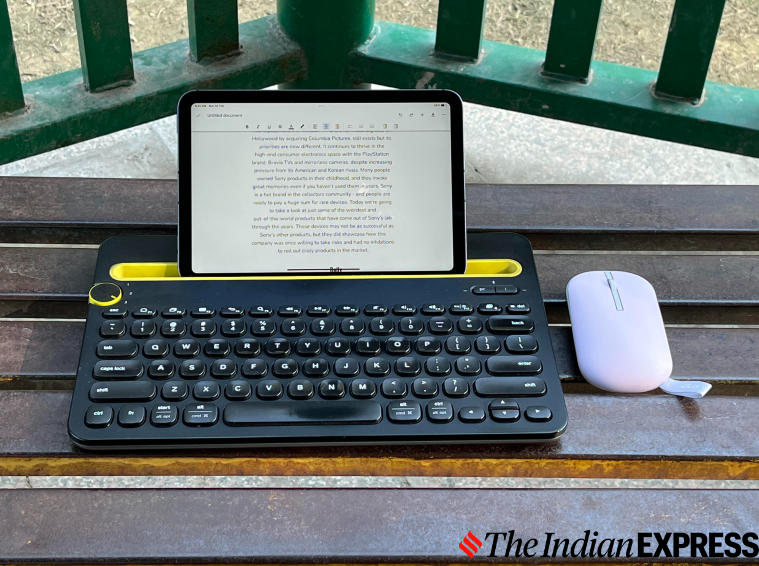 Being a writer, the iPad gives me the freedom to work from anywhere. (Image credit: Anuj Bhatia/
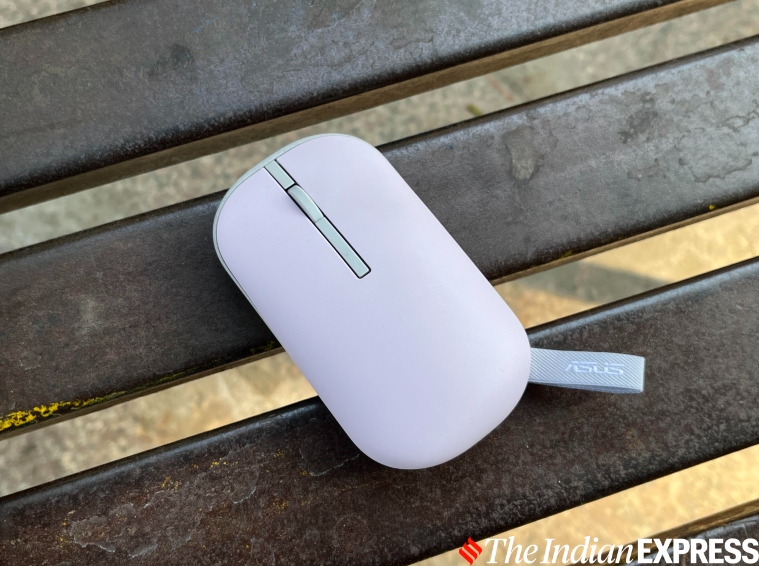 The Asus Marshmallow MD100 wireless Bluetooth mouse is simple looking and easy to set up. (Image credit: Anuj Bhatia/Indian Express)