


© IE Online Media Services Pvt Ltd
Tags:


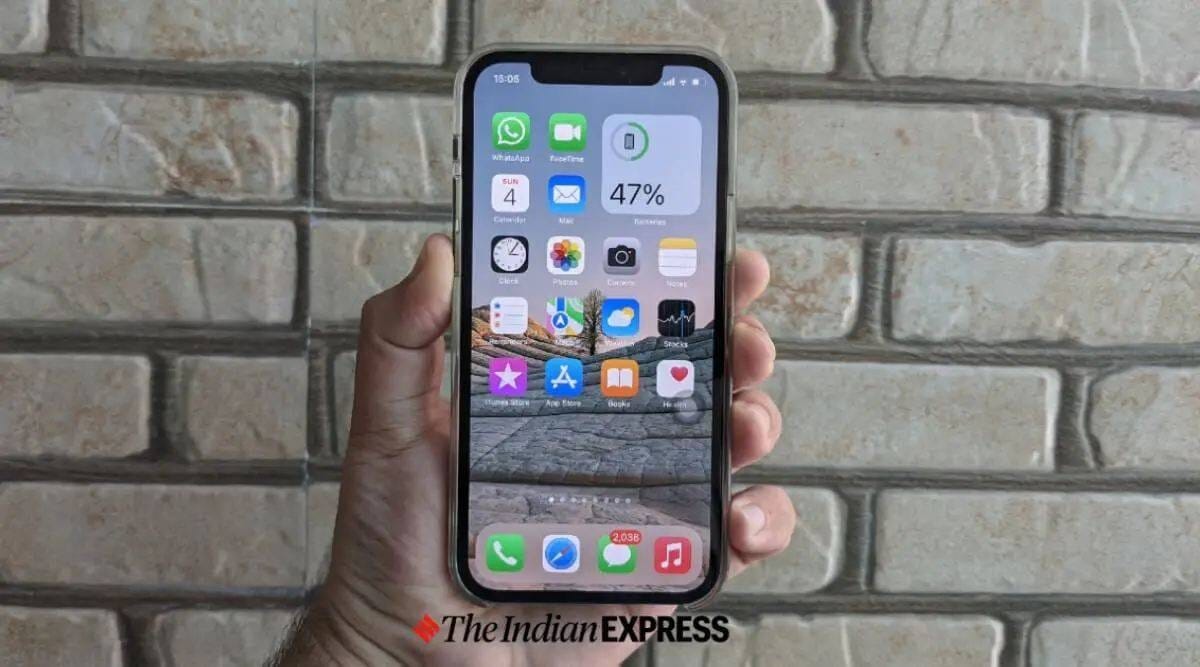
Apple rolled out the second iOS 16.3 and iPadOS 16.3 beta updates to developers for testing purposes, a month after introducing the first betas. The update includes support for physical Security Keys, which users can use to sign in to their Apple ID account. Security Keys replace the two-factor authentication codes sent to Apple devices when logging into an Apple ID. Apple is expected to roll out the stable build by February 2023.
“For users who opt-in, Security Keys strengthens Apple’s two-factor authentication by requiring a hardware security key as one of the two factors. This takes our two-factor authentication even further, preventing even an advanced attacker from obtaining a user’s second factor in a phishing scam,” says Apple about the feature.

To install the iOS 16.3 beta or iPadOS 16.3 beta updates on your device, follow the steps given below.
1. Fire up Safari on your iPhone/iPad, head to developer.apple.com, and log in using your Apple ID.
2. Go to the Downloads section in the lefthand menu, scroll down to iOS 16 or iPadOS 16 beta and tap Install Profile.
3. Open the Settings app, where you’ll see Profile Downloaded at the top of the main screen. Tap on it.
4. Tap install from the top right to install the iOS or iPadOS 16 beta profile. Go through the developer consent form and give your consent.
5. Restart your iPhone/iPad.
6. Open Settings again and navigate to General > Software Update, where you’ll see the latest beta available.
7. Hit install.
Do note that these steps assume that you’re already a part of the Apple Developer Program. If you aren’t, you’d have to register from developer.apple.com — although you’d want to do that only if you are a developer. If not, then it’s best to register for the public beta instead and wait for the update to make it to that branch.
However, if you’d rather sign up as a developer, then the following steps will help.
1. Launch the Apple Developer app on the device you want to use for enrollment.
2. Navigate to the Account tab.
3. Sign in with your Apple ID. This can be different from the Apple ID signed in to your device but must have two-factor authentication turned on.
4. Review the Apple Developer Agreement and tap on Agree.
5. Tap Enroll Now.
6. Review the program benefits and requirements and tap on Continue.
7. Enter your personal details, review your annual membership subscription details, and hit the Subscribe button.


