3 min read
© IE Online Media Services Pvt Ltd



 Here's how to avoid AI Overviews when searching for something on Google. (Image Source: Google)
At the recently concluded Google I/O 2024, the tech giant added generative AI-powered results to its search engine. Dubbed ‘AI Overviews’, the new feature offers Gemini-powered overviews of topics you are searching for. However, not everyone wants to see AI-generated answers on top of their search results. Users were also quick to flag issues and said that they were seeing false, bizarre and misleading AI-generated advice.
If you are in the same boat as others and want Google to show web links instead of AI-generated answers, there’s a simple workaround that removes all the layers like links to shopping websites, knowledge panels and more and only shows links relevant to the search query.
To remove AI overviews from search results, simply tap on the ‘Web’ filter which appears alongside the ‘Images’, ‘Videos’ and ‘News’ filters. Doing so will force Google to remove answers, ads, AI and other things and only show text-based links. While desktop users may have to click on the ‘More’ button to make the web filter appear, Google says mobile users won’t have to do so.
If you think choosing the ‘Web’ filter every time you search for something on Google is a hassle, you can customise your browser settings so that the address bar automatically open the ‘Web’ filter. However, you will need to create a custom site search shortcut in your browser and make it the default option for all your searches.
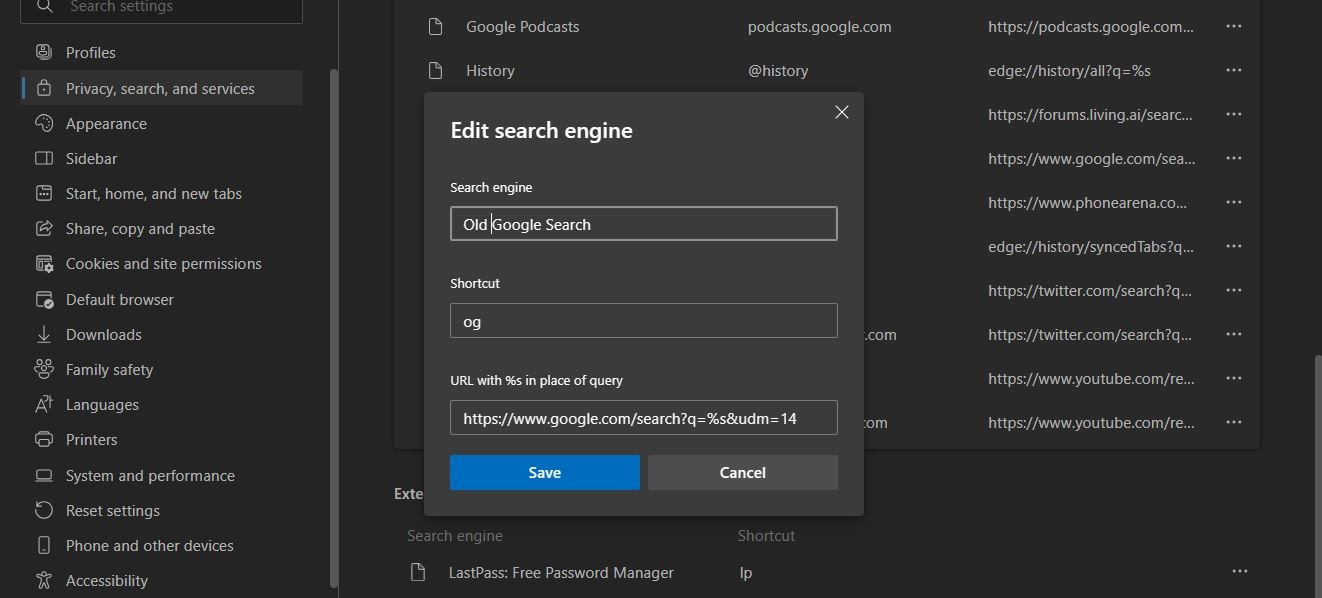 Here’s how to get rid of Google AI Overviews in search results. (Express Photo)
To do so, open your favourite browser, head over to the search engine section from the browser settings and choose the option to create a new search engine shortcut. In the name field, enter the name you want to and in the shortcut field, use a simple name like ‘og’ (Old Google). In the last field, type “https://www.google.com/search?q=%s&udm=14” and hit the save button.
Now, if you want to search for something, type of in your address bar followed by your search query and Google Search will automatically use the new ‘Web’ filter. Alternatively, you can also make the new shortcut the default option, so you won’t have to type in the shortcut phrase every time you want to search for something.