Bought Apple’s AirPods?Here are six tips and tricks to get most out of your AirPods.
AirPods were first launched in 2016 alongside the iPhone 7 and have since been one of the best-selling truly wireless earbuds in the market. You will find people wearing AirPods in the gym, in the Café, in an office meeting and pretty much everywhere.
What has worked in favour of AirPods is the ease of use and affordable price, compared to the premium that Apple usually charges. There are still a few things that you might not know about it, however, these tips and tricks should help you get most out of your AirPods.
You’ve Read Your Free Stories For Now
Sign up and keep reading more stories that matter to you.
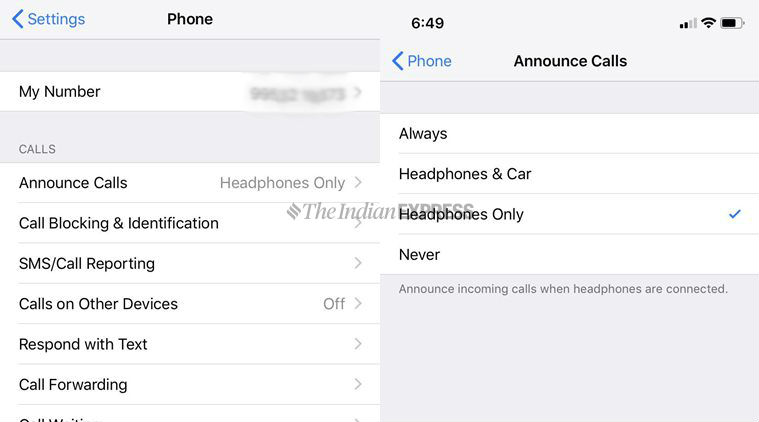
Most people avoid taking calls in the middle of a presentation, or a crucial meeting. Still, it would be nice to know who’s calling without looking at your iPhone. If you are wearing AirPods and want to attend calls without taking out the phone out of your pocket, there’s a feature called ‘ Announce Calls’.
To do this, simply go to the Settings>Announce Calls and choose Headphones Only. Now, Siri will tell you who is calling you if it recognises the number from your Contacts list.
Siri will tell you who is calling you if it recognises the number from your Contacts list.
Airpod tricks: Connect to Android devices
It’s a myth that AirPods work only with the iPhone and they can also be used with any Android smartphone. Here’s how to pair AirPods with an Android smartphone:
* Open the AirPods case.
*Press and hold the button on the rear to initiate pairing mode.
* Now, go to the Settings menu on your Android smartphone and select Bluetooth.
* Find the AirPods on the listed device and hit Pair
AirPods can also work with any Android smartphone.
But keep in mind that since the AirPods are being used with a non-Apple device, you will lose some features such as automatic pausing when removing the wireless buds from your ear, or the ability to customise the double tap feature.
Story continues below this ad
Airpod tricks: Check battery info
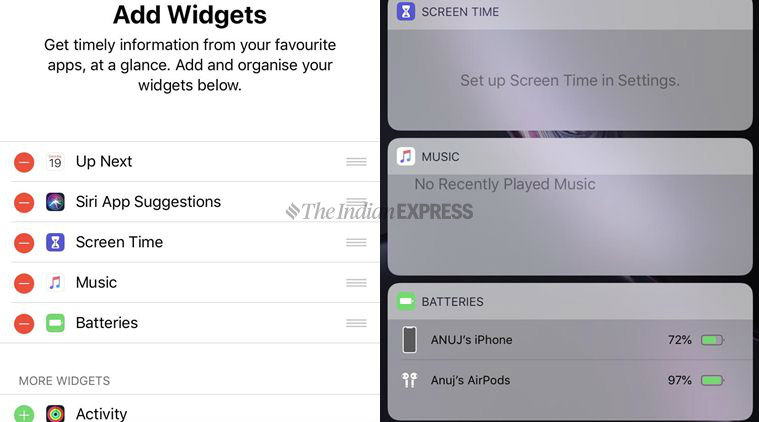
There are two ways to check your AirPods battery life. To check the battery of your AirPods, all you need to swipe the right of the iPhone display to view widgets. Once done, scroll down to the bottom of your widget list and Tap Edit.
Now, find the widget you want to add, Find the ‘Batteries’, Tap the green + button, and Tap Done. It shows the iPhone’s level and the AirPods, if connected.
It’s easy to check the exact battery usage of your AirPods.
The other way is even more simpler. To check how much juice is left on your AirPods, just double tap an AirPod to activate Siri and say “battery percentage”. Siri will let you know a battery status of your iPhone as well as AirPods.
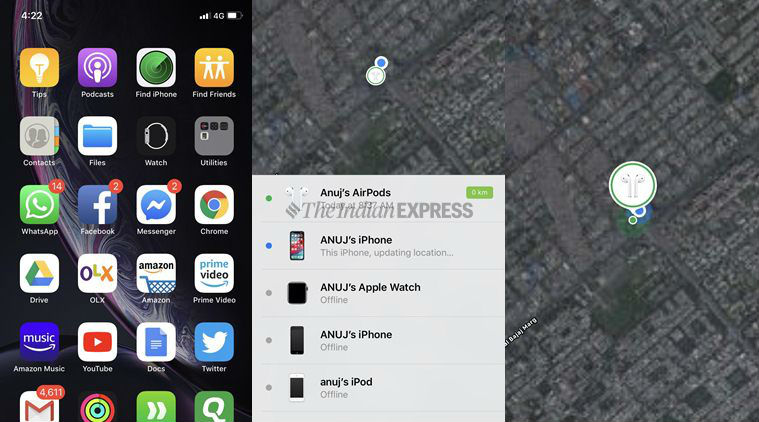
Did you misplace your AirPods in a mall? Worry not. Apple has a tool called “Find My AirPods” that lets you view their location on a map. You can use this feature in two ways either by the Find My iPhone app on an iPhone or iPad, or by signing into the iCloud.com website on a PC or Mac.
Story continues below this ad
All you need to launch the Find My iPhone app or visit the website, and then sign in with your Apple ID. If your AirPods were paired with the iPhone linked to your Apple ID, they will appear in the list under “My Devices” and select your AirPods.
Apple has a tool called “Find My AirPods” that lets you view their location on a map.
If your AirPods are powered on, they will appear as “Online”. Remember that AirPods will only appear as online if they’re in range of your iPhone. If the AirPods are out of range, are in the AirPod case, or are out of charge, they’ll appear as “Offline” instead.
Even if your AirPods are offline, you can still track them and you may be able to spot heir last known location. This gives you a rough idea of the last place you used your AirPods.
Airpod tricks: Use Siri to control music hands-free
You can now ask Siri, Apple’s digital voice assistant, to “pause” and “skip tracks” on your AirPods. Instead of using the iPhone to change the song or volume, let Siri do it for you. As an example, you can say “play Shallow by Lady Gaga”, “skip to the next song”, or turn down the volume by 20 per cent”.
Story continues below this ad
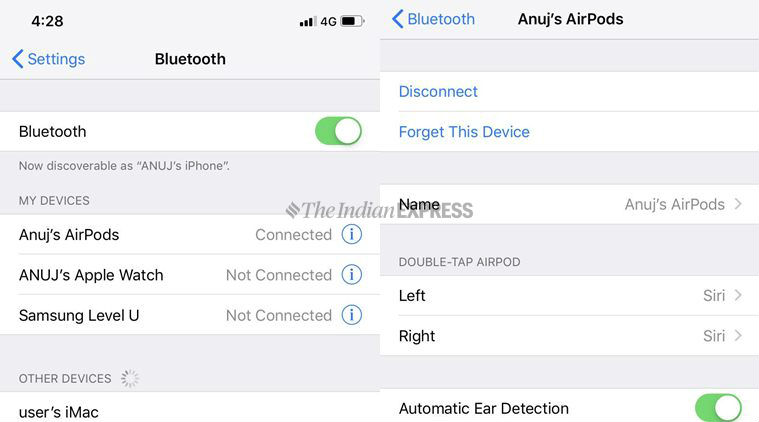
Here’s how you can customise your AirPods’ double-tap controls:
*First things first, make sure your AirPods are connected to the iPhone.
*Go to the Bluetooth in the phone’s settings menu.
*Tab your AirPods on the list.
*Select either left or right AirPod.
You can now ask Siri, Apple’s digital voice assistant, to “pause” and “skip tracks” on your AirPods.
You will see several options when customising the double tap, including “Siri’, which obviously activates Siri and controlling music playback with play/pause, skip forward or skip backward.
Airpod tricks: Live Listen
Live Listen turns your AirPods into hearing aids (sort of). It is purely an accessibility feature that can let users hear conversations, in noisy environments.
Story continues below this ad
To activate the feature, users need to go to Control Center menu under Settings, tap Customise Controls, and then tap the + sign next to the Hearing icon to add it to the Control Center.
Live Listen turns your AirPods into hearing aids (sort of).
The logic behind adding the Live Listen feature was to help users with minor hearing issues. However, some people are misusing an iPhone and a pair of AirPods to eavesdrop on other people’s conversations through the Live Listen feature.
Anuj Bhatia is a seasoned personal technology writer at indianexpress.com with a career spanning over a decade. Active in the domain since 2011, he has established himself as a distinct voice in tech journalism, specializing in long-form narratives that bridge the gap between complex innovation and consumer lifestyle.
Experience & Career: Anuj has been a key contributor to The Indian Express since late 2016. Prior to his current tenure, he served as a Senior Tech Writer at My Mobile magazine and held a role as a reviewer and tech writer at Gizbot. His professional trajectory reflects a rigorous commitment to technology reporting, backed by a postgraduate degree from Banaras Hindu University.
Expertise & Focus Areas: Anuj’s reporting covers the spectrum of personal technology, characterized by a unique blend of modern analysis and historical context. His key focus areas include:
Core Technology: Comprehensive coverage of smartphones, personal computers, apps, and lifestyle tech.
Deep-Dive Narratives: Specializes in composing longer-form feature articles and explainers that explore the intersection of history, technology, and popular culture.
Global & Local Scope: Reports extensively on major international product launches from industry titans like Apple and Google, while simultaneously covering the ecosystem of indie and home-grown tech startups.
Niche Interests: A dedicated focus on vintage technology and retro gaming, offering readers a nostalgic yet analytical perspective on the evolution of tech.
Authoritativeness & Trust
Anuj is a trusted voice in the industry, recognized for his ability to de-jargonize trending topics and provide context to rapid technological advancements. His authority is reinforced by his on-ground presence at major international tech conferences and his nuanced approach to product reviews. By balancing coverage of the world's most valuable tech brands with emerging startups, he offers a holistic and objective view of the global technology landscape.
Find all stories by Anuj Bhatia here.
You can find Anuj on Linkedin. ... Read More