3 min read
© IE Online Media Services Pvt Ltd



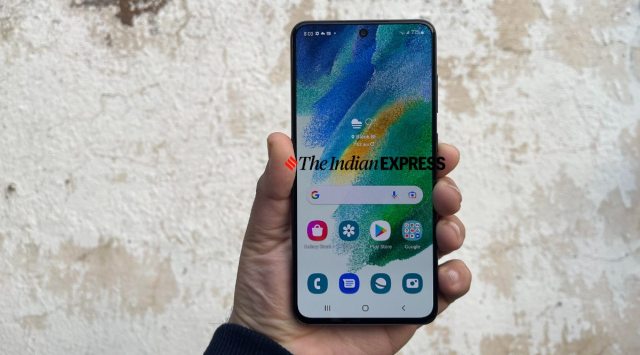 Here's how One UI 5's new Security and Privacy Dashboard can help you. (Express Photo)
 Android 13 was a big jump for Android users when it came to privacy and security, with perhaps one of the update’s most important changes being the ability to minutely set and monitor the permissions of each app on the phone. Samsung’s One UI 5, which is based on Android 13 also makes use of this dedicated Privacy Dashboard.
On One UI 5, this is called the Security and Privacy Dashboard and Samsung has today announced an in-depth look at how you can use each setting in here to be in control of your apps. Here’s a quick look at all that’s new.
Managing Ads: Users can opt out of targeted advertisements easily on One UI 5. To do this, they can go to the Security and Privacy Dashboard section, head over to the Privacy tab and go to the Ads menu. Here, they can select Delete Ad ID to avoid unwanted recommendations based on their shopping habits.
Camera and Microphone permissions: Inside the dashboard, users can also choose precisely which apps can and cannot use two of the most important input elements on your smartphone – the microphone and the camera. Thanks to Android’s recent features, you can completely block out access to the camera and microphone when you want to ensure total privacy.
Location privacy: Many apps on your phone use your location. However, apart from a few like food delivery or navigation apps that you use, you may not know why many other apps require your location. You can use the Security and Privacy Dashboard to check which exact apps have had access to your location in the last 24 hours and take actions accordingly.
Revoking permissions from unused apps: Perhaps one of the most important additions, Android 13-based One UI 5 is revoking permissions from apps that were downloaded long back and have sparsely been used since, while they still have all permissions. If you’re getting back to such an app, a quick trip to the Dashboard will let you reinstate these permissions.