3 min read
© IE Online Media Services Pvt Ltd



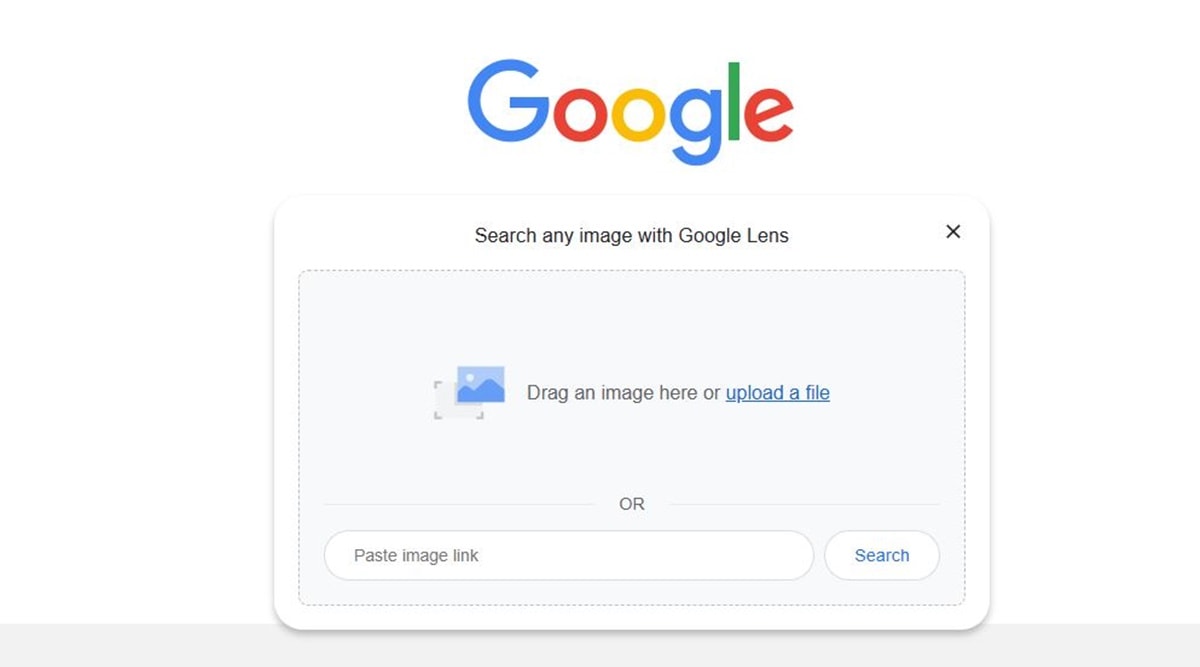 Reverse image search lets you find the source of the image or find similar photos on the internet. (Image Source: Google)
 While most of us use the internet to perform text-based searches, sometimes you might want to check what an image means or where it came from. This is where the concept of reverse image search comes in handy. For the uninitiated, reverse image search is the process of searching the internet with an image instead of using keywords.
Using reverse image search, users can determine the original source of an image, search for alternative image sizes and even view images similar to the one they searched for. Here, we will be taking a look at how to reverse image search on your phone and desktop using Google Search and Chrome web browser.
The process of reverse image search is pretty simple. All you need to do is head over to the Google Search homepage and click on the camera button which sits right to the microphone icon on the right side of the text search field.
Clicking on the camera button will open a small window where you can either upload an image from your computer or paste an image link. Once done, Google will automatically search for the image on the internet and load the Google Lens interface. Here, you can search for similar images or extract any text from the image and search for it.
If you are on a mobile device, the interface is a bit different. If you press the camera button on the right side of the Google Search homepage, the browser loads a window where you can either click and search for an image using the device camera or alternatively choose from an existing image on your device.
If you want to search for information about an image from a website and are using Google Chrome, right-click on the image and click on the ‘Search images with Google Lens’ option. This will load the Google Lens interface on your screen. Similar to how reverse image search works with Google Search, you get options to search for text in the image, translate and the option to find the image source.