5 min read
© IE Online Media Services Pvt Ltd



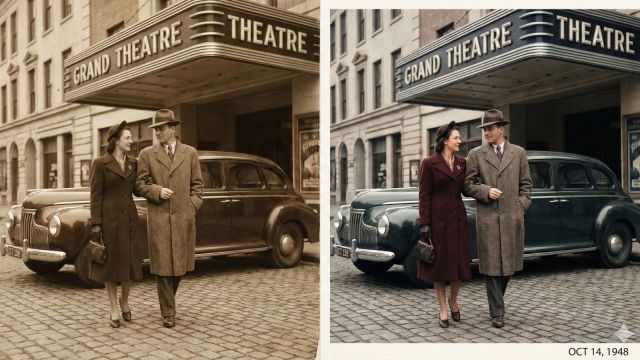 Tips for enhancing colours, textures and faces. (AI-generated image/Nano Banana Pro)
Days after the release of Nano Banana Pro, Google’s latest and most advanced image-generation and editing AI model, social media feeds are flooded with AI-modified, photorealistic content that is increasingly blurring the line between what is real and what is synthetic media.
Nano Banana Pro is powered by the recently unveiled Gemini 3 Pro, which is part of the tech giant’s newest family of foundational AI models with multimodal reasoning capabilities. Users have been quick to point out Nano Banana Pro’s improvements over its predecessor, the Gemini 2.5-powered Nano Banana model, with one of the most noticeable upgrades being the Pro version’s ability to generate images with more precise and legible text in multiple languages.
While several use cases of Nano Banana Pro have gone viral over the past few days, asking it to restore old photos is the most common of them. Let’s take a look at what prompts users can input based on industry best practices. But first, remember that a good prompt structure usually looks like this:
[Type of original photo], [Action required], [Specific defect removal], [Desired final quality/style]
Use this prompting technique when you want to restore a standard vintage photo that is blurry, faded, or slightly scratched:
The Direct Approach: “Restore this vintage photograph. Remove all scratches, dust, and creases. Correct color fading and fix yellowing. Sharpen details, reduce noise, and enhance texture. High resolution, clean image.”
More Descriptive: “Complete restoration of damaged old photo. Clean up paper texture, eliminate artifacts and blur. Bring out details in clothing and background. Balance exposure and contrast. Pristine, sharp, 4k quality photograph.”
Use this approach when the physical photo is severely compromised, that is, it has tears, water damage, or deep folds.
The ‘Heavy Lifting’ Prompt: “Intensive repair of severely damaged photo. Reconstruct missing torn edges seamlessly. Remove deep fold lines across the center. Eliminate water stains and discoloration patches. Rebuild damaged areas while keeping the original subject intact. Clean, reconstructed photograph.”
Focus on scratches and mold: “Remove severe surface scratches, mold spots, and emulsion damage throughout the image. Smooth out paper grain texture without losing detail. De-noise heavily. Clear, restored image.”
Sometimes, AI models struggle with modifying vintage faces as they end up making them look too smooth or cartoonish. In that case, use the sample prompt below:
The Realistic Face Fix: “Restore old family portrait. Focus on enhancing facial details, eyes, and skin texture realistically. Remove motion blur from faces. Do not over-smooth skin. Keep the authentic vintage feel of the background but make the subjects sharp and highly detailed.”
While using Nano Banana Pro to colorise black and white photos, you have to ensure that it doesn’t just wash the image with sepia tones. To avoid this, use these prompts:
Historical accuracy: “Colourize this black and white photograph. Apply accurate, realistic historical colors to clothing, foliage, and architecture. Natural, warm skin tones. Vibrant but authentic color palette. High-definition color photograph.”
Fixing faded colour photos: “Correct extreme color shifts and fading. Neutralize the red/magenta tint. Restore natural white balance and vibrant, accurate colors to the scene. Remove grain. Sharp, modern color grading.”
Besides these sample prompts, another effective technique to take full advantage of the Nano Banana Pro model is to use negative prompts.
Input quality matters: Ensure the scan or photo of the vintage image you are feeding into Nano Banana Pro is as high-resolution and flat as possible. There should not be any glare on the original photo.
Iterate: Run a general restoration prompt first. Save that result. Then, run that new image through again with a specific prompt focusing on faces or colour.
Don’t over-prompt: If you add too many contradictory instructions (such as “make it look 100 years old but also look brand new”), the model might get confused.
Add negative prompts: These are prompts where users type what they do not want to see in an AI-generated or AI-modified photo. For instance, you can add unwanted visual elements in the negative prompt box, such as scratches, dust, tears, creases, folds, water damage, mold, sepia, yellowing, blurry, noisy, grainy, low resolution, distorted faces, oversaturated, cartoonish, artifacts, bad hands, and missing fingers.