


© IE Online Media Services Pvt Ltd
Tags:


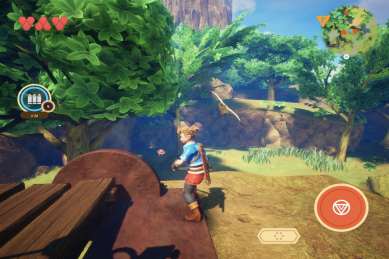
Frogger in Toy Town, Oceanhorn 2, Sayanora Wild Hearts, and Hot Lava are among the 100 games that can you play on your iPhone running iOS 13. But for that, you need to subscribe to Apple Arcade, a brand new video game subscription service. Now live in India, the service will cost Rs 99 a month, with the free one-month trial to check it out.
Subscribing to Apple Arcade lets you play “exclusive” games on the iPhone – with no ads, and microtransactions. You won’t able to play Apple Arcade games on any rival mobile platform (like Android), or on any other subscription service. And every single Apple Arcade game will be played offline, and a single subscription can be used by up to six people through Family Sharing.



Excited about Apple Arcade? Here’s how to sign up Apple Arcade right now?
Before you make your mind to subscribing to Apple Arcade, make sure your iPhone is updated to iOS 13. iPhones running iOS12 won’t support Apple Arcade.
1.) Launch the App Store on your iPhone.
2.) Tap on Arcade button in the bottom menu bar.
3.) If you’ve not signed in yet, sign in with your Apple ID.
4) Try Apple Arcade free to start your 1-month free trial. Just remember the service will cost Rs 99 a month after the trial period.
5.) Tab confirm to start the trial and sign up for Apple Arcade.
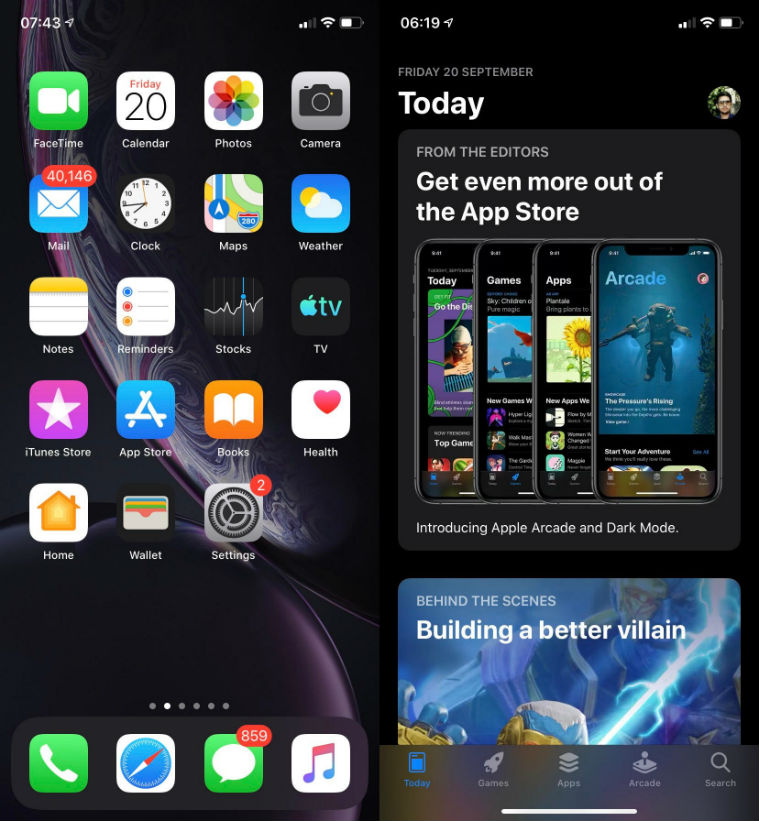
Now that you’ve confirmed to start your 1-month free trial, it’s time to play games. Apple said there will be over 100 games by the end of the year, with new games launching each month.
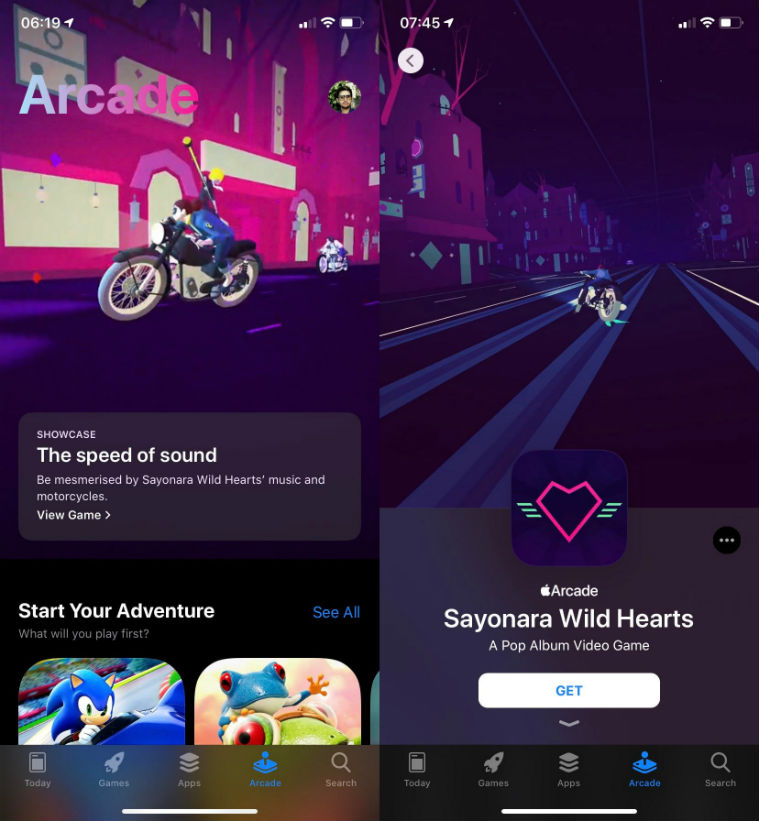
Finding and downloading Apple Arcade games are easy. It’s similar to downloading an app from the App Store, except games can be downloaded from an all-new tab on the App store on your iPhone.
1.) Launch the App Store on your iPhone and go to the Arcade section.
2.) Simply scroll down to the page and tab See All Games.
3.) Find a game you want to play, and tap the Get button to download the game.
4.) Once the game is downloaded, just tab Play.
Didn’t like Apple Arcade games? Relax, you can easily end your free trial.
1.) Head to the App Store on your iPhone.
2.) Tap on your Apple ID in the top right corner.
3.) Select subscriptions.
4.) Select the Apple Arcade tab in the App Store.
5.) Tab Cancel Free Trial or Cancel Subscriptions
6.) Confirm your subscription.


